An old smartphone as an MQTT-to-UART bridge with USB OTG and an FTDI adapter
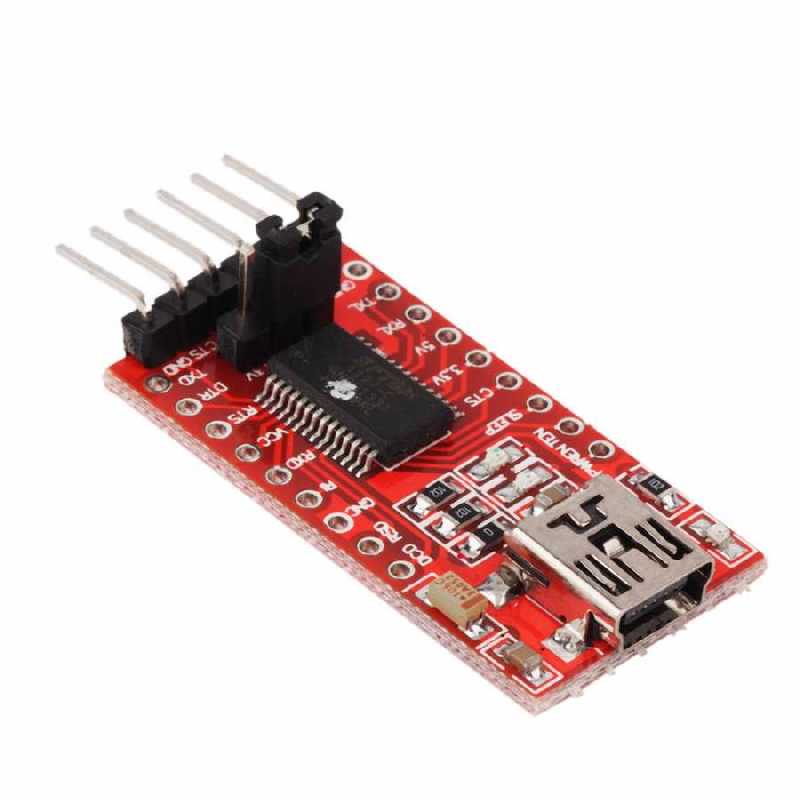
The USB connector on a smartphone can be used for more than charging. it can provide a data connection to external electronics. This experiment uses an old phone and an FTDI USB-to-UART adapter to pass remote commands to a Roomba.
The phone acts as a bridge between the MQTT broker and the robot's serial interface. Commands sent through the Walkeremote portal reach the phone, are decoded by the software, and are forwarded over USB to the FTDI adapter. The adapter provides the UART connection used by the Roomba.
This use of the charging connector does not automatically mean that the phone can charge at the same time. Simultaneous charging and USB host operation depend on the phone and the adapter arrangement.
Sending commands to UART PORT.
In the demonstrated setup, the Roomba receives commands through its onboard UART interface. The phone decodes the messages received from the broker and sends the corresponding serial data through the FTDI connection.
This provides another way to reuse a smartphone as the network-connected part of a robot-control system. The robot continues to use its own electronics, while the phone supplies the link between the remote portal and the serial connection.
Sending and receiving data
The same bridge concept can support communication in the opposite direction: serial data received from a device can be read by the phone and published through the broker, when that return path is implemented in the software. The example presented here focuses on sending commands to the Roomba and displaying the received commands in the phone's logs.
Watch the demonstration
The video shows the smartphone-based setup used to forward remote commands to the Roomba through the UART adapter.
An old smartphone as a remote-control interface with the GY-33 color sensor
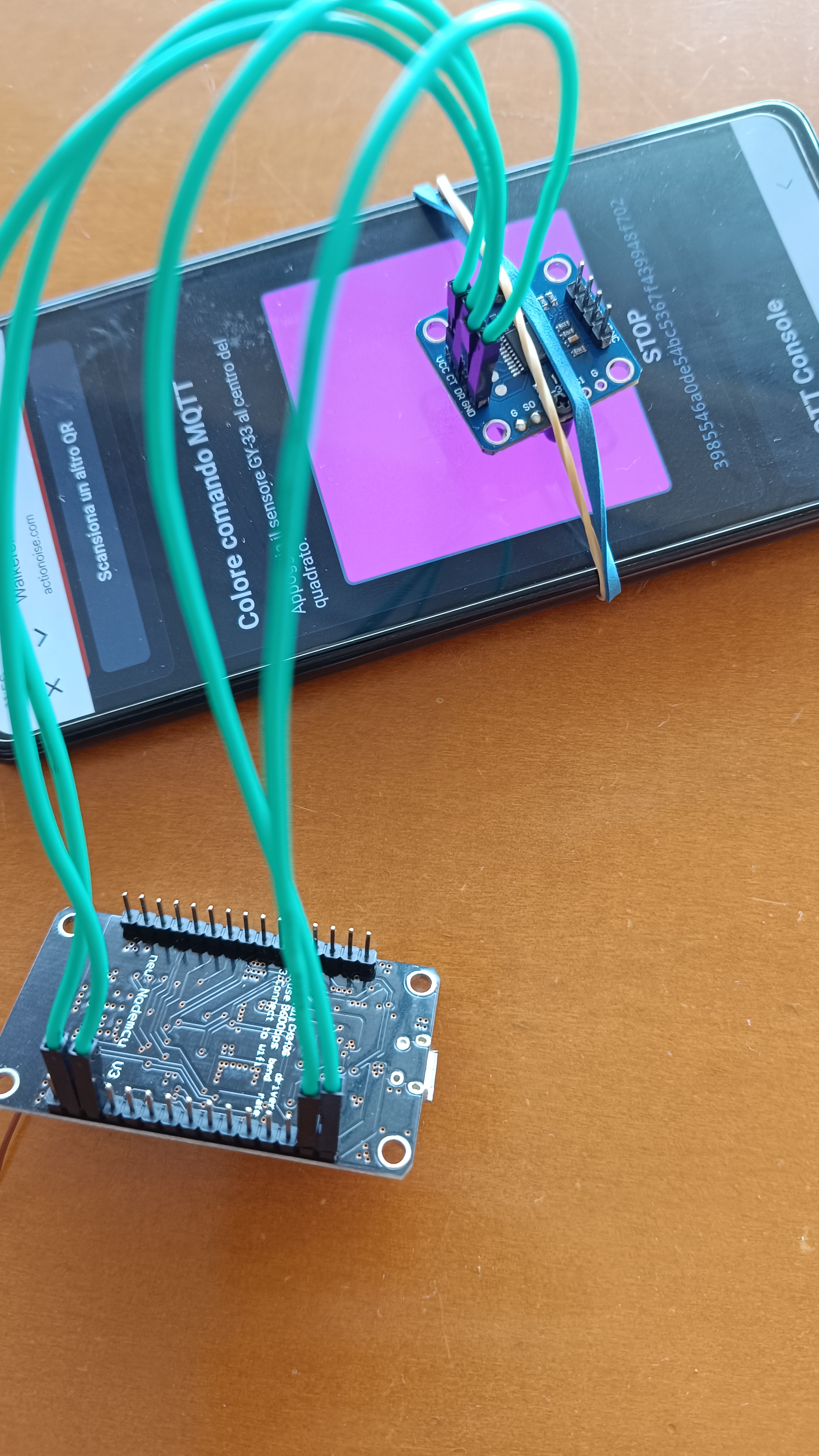
An old smartphone can provide the network connection and display needed for an alternative approach to remote control. Instead of receiving commands directly through a Walkeremoteboard or an ESP8266-based network interface, this experiment uses a web page, a colored square and a GY-33 color sensor.
The principle is straightforward: a command arrives at the web page, JavaScript changes the color of a square on the phone's display, and the sensor reads that color. A connected microcontroller then interprets the reading and executes the corresponding action.
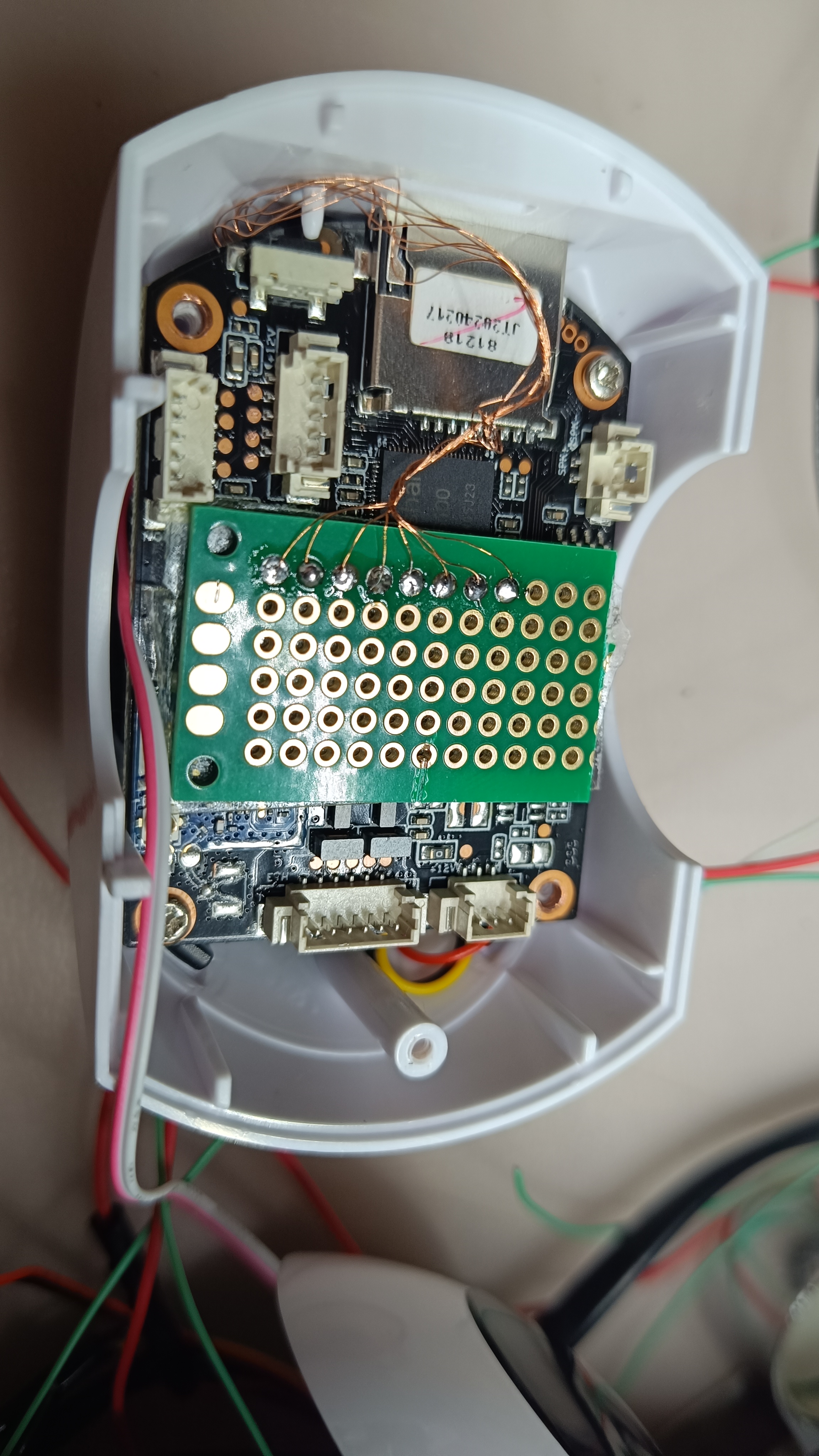
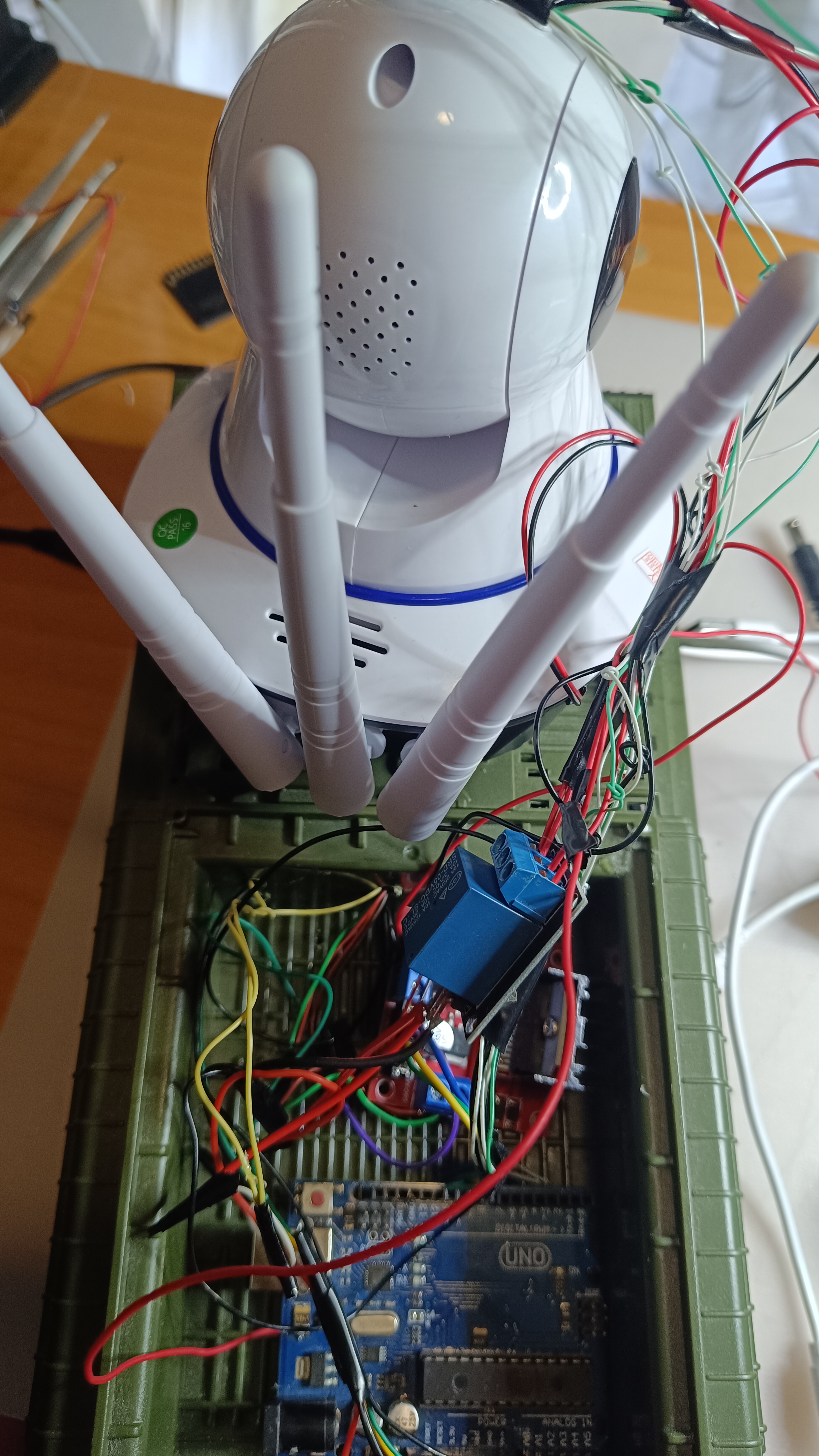
The GY-33 positioned over the command square on a smartphone display, connected to the external control board.
From a remote command to a color
The phone opens actionoise.com/sensor.html, the web page that receives commands from the MQTT broker and uses JavaScript to translate them into colors on the display. Each configured command is associated with a particular color shown inside the square, where the GY-33 reads it.
The GY-33 is positioned over that area of the screen. The display becomes an optical link between the web page and the external electronics:
The smartphone handles the web connection and visual output. A microcontroller is still required to read the sensor and operate the connected hardware: the phone replaces the network-facing part of the setup, rather than all the control electronics.
The first sketch is used to calibrate the colors associated with the received commands. During this stage, the sensor readings are checked against the colors displayed by the phone.
The second sketch is used for normal operation, recognizing the calibrated colors and executing the corresponding commands. Separating these steps makes it possible to adjust the color recognition before using it to control the hardware.
Keeping the readings consistent
For repeatable readings, the sensor should remain aligned with the colored square. Screen brightness, the distance between the sensor and the display, and surrounding light can affect the measurement.
Calibration should therefore be performed with the same physical arrangement used during operation. Automatic brightness changes and screen timeout should also be considered when preparing the phone for the experiment.
Giving an old phone another purpose
This approach offers a practical way to explore the reuse of a smartphone that is no longer needed for everyday use. Its browser, network connection and display become part of a remote-control system, while the GY-33 provides the link to external electronics.
It is an experimental alternative for applications that can represent their commands as a small set of distinct colors.
Walkeremote Universal Joypad: control your robot over the camera view
Walkeremote Universal Joypad is an Android app available on Google Play. It brings MQTT controls into a floating joypad, allowing a camera app to remain open while commands are sent to a robot from the same screen.
The example shown here uses a modified Roomba. The camera app provides the live view, while Walkeremote U.J. places the controls above it. This allows the operator to follow the robot's movements and use the joypad without switching between apps.
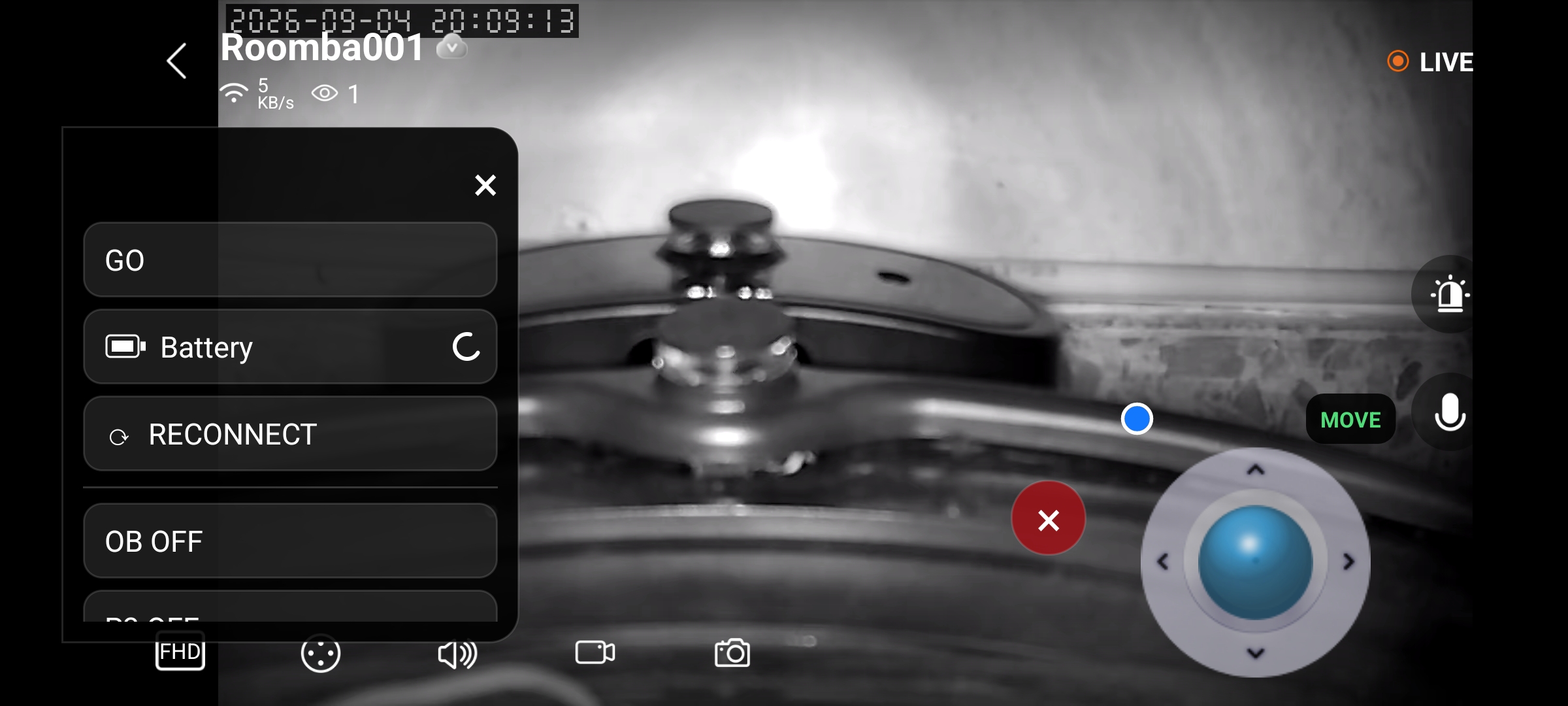
The floating joypad and command menu over the camera app while controlling the modified Roomba.
Start with the overlay permission
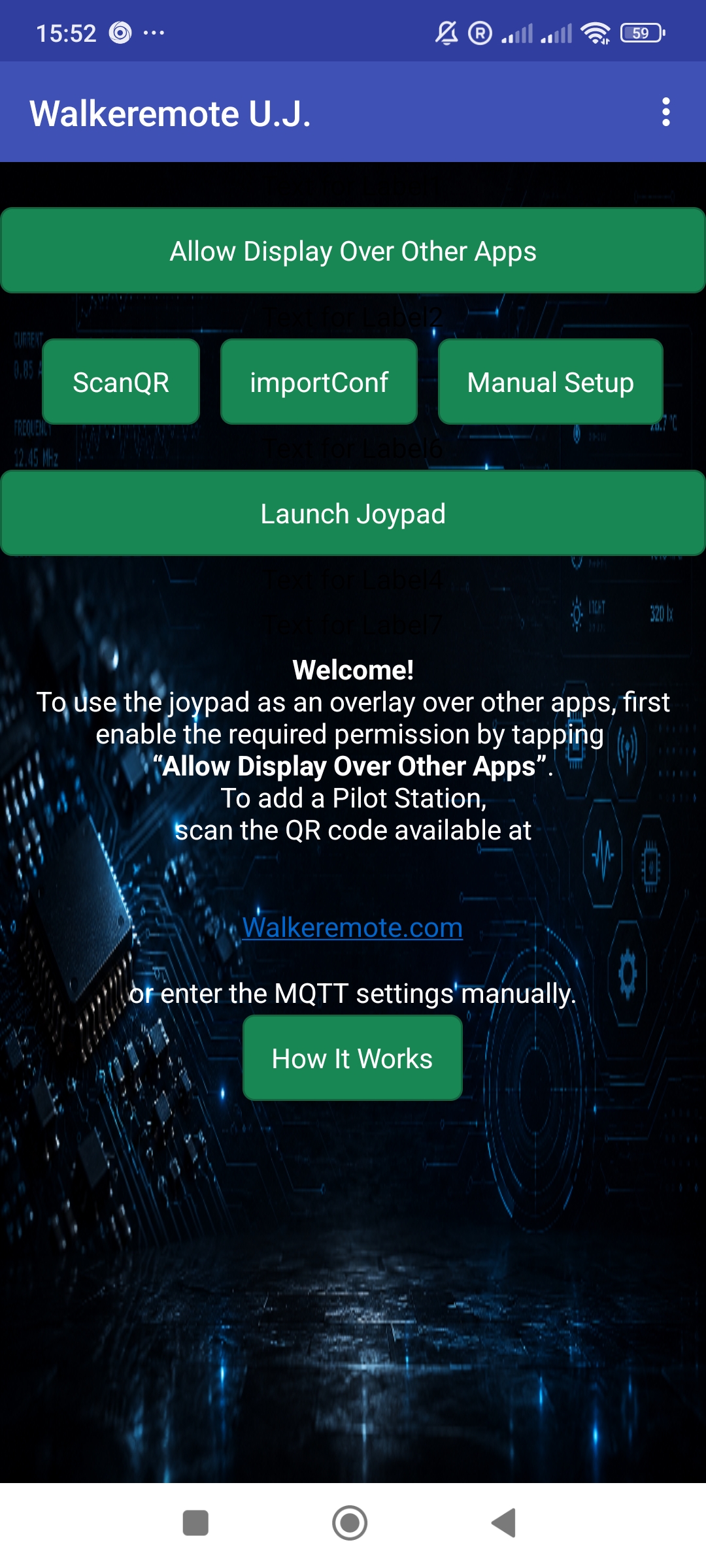
On the initial screen, tap Allow Display Over Other Apps and enable the Android permission. This allows the joypad to remain visible over another app, such as the camera viewer used in the Roomba setup.
The start screen also provides ScanQR, importConf, Manual Setup and Launch Joypad, together with a How It Works button.
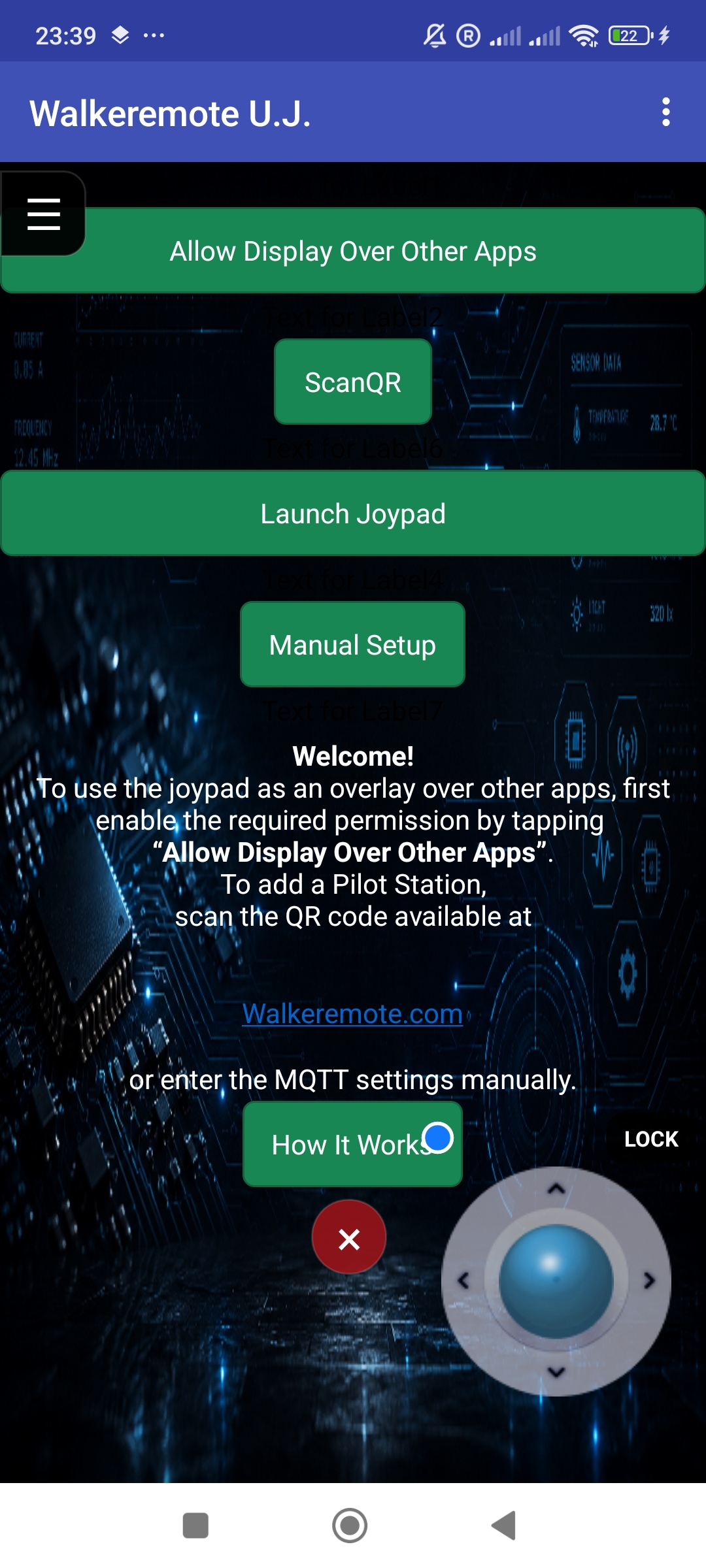
The start screen: overlay permission and configuration options.The joypad running as an overlay, with its directional control and separate menu.
Connect a Pilot Station
A Pilot Station holds the connection settings for the device to be controlled. The signed-in page on walkeremote.com provides QR code generation and a Walkeremote U.J. App Config download. In the app, ScanQR is the QR setup option and importConf provides configuration import.
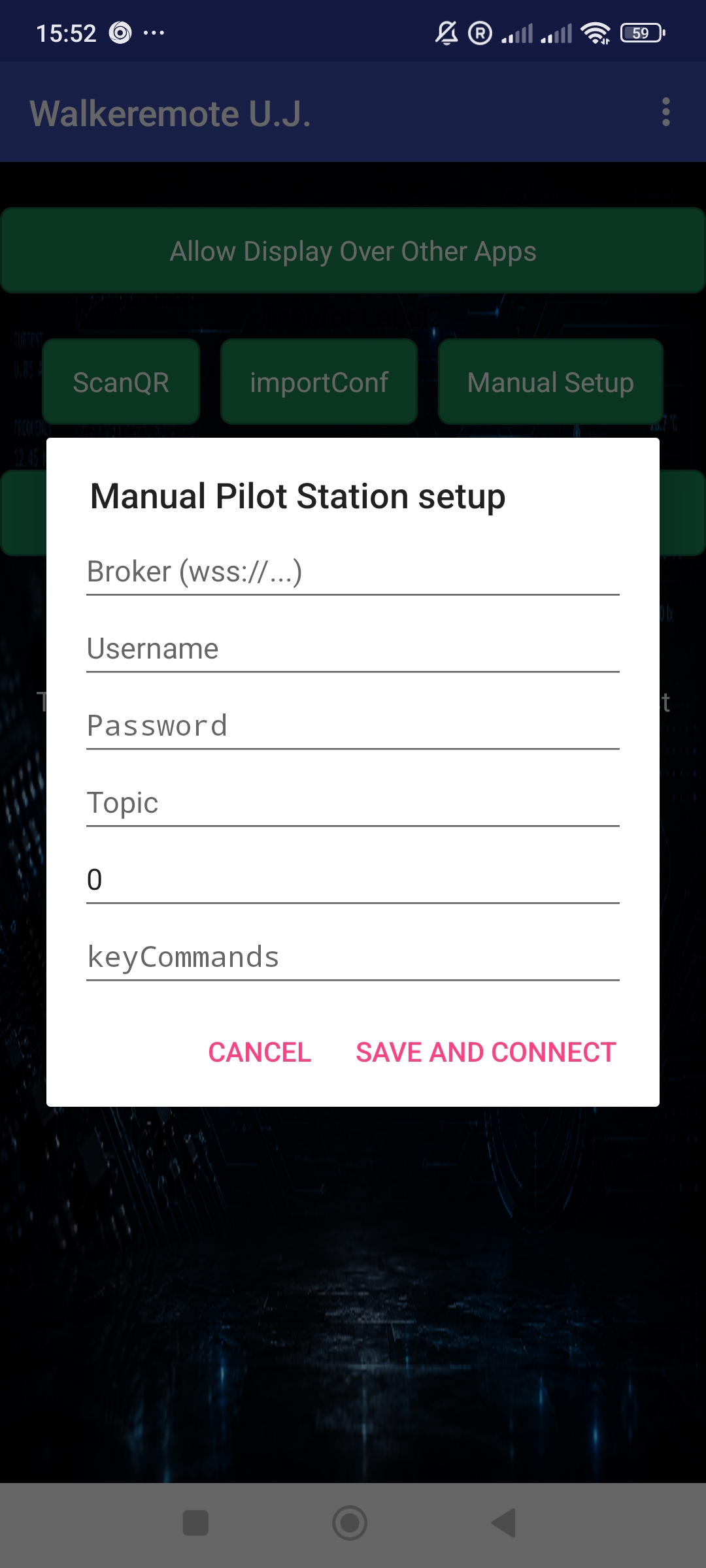
There is also a manual route. Manual Setup opens a form for the broker address, shown with a wss:// example, username, password, topic and command settings. After entering the configuration for the device, tap Save and Connect.
Manual Pilot Station setup.
Launch the joypad and open the camera
After configuring the Pilot Station, tap Launch Joypad. The screenshots show the floating directional pad and a separate menu button. With the camera app open underneath, the video stays visible while the pad sends commands to drive the modified Roomba.
The expanded menu in this example includes controls labelled GO, Battery and RECONNECT, together with additional device commands. What the robot does with those commands depends on its configuration and firmware. The joypad supplies the control interface; the camera view comes from the separate camera app.
Use names that match your project
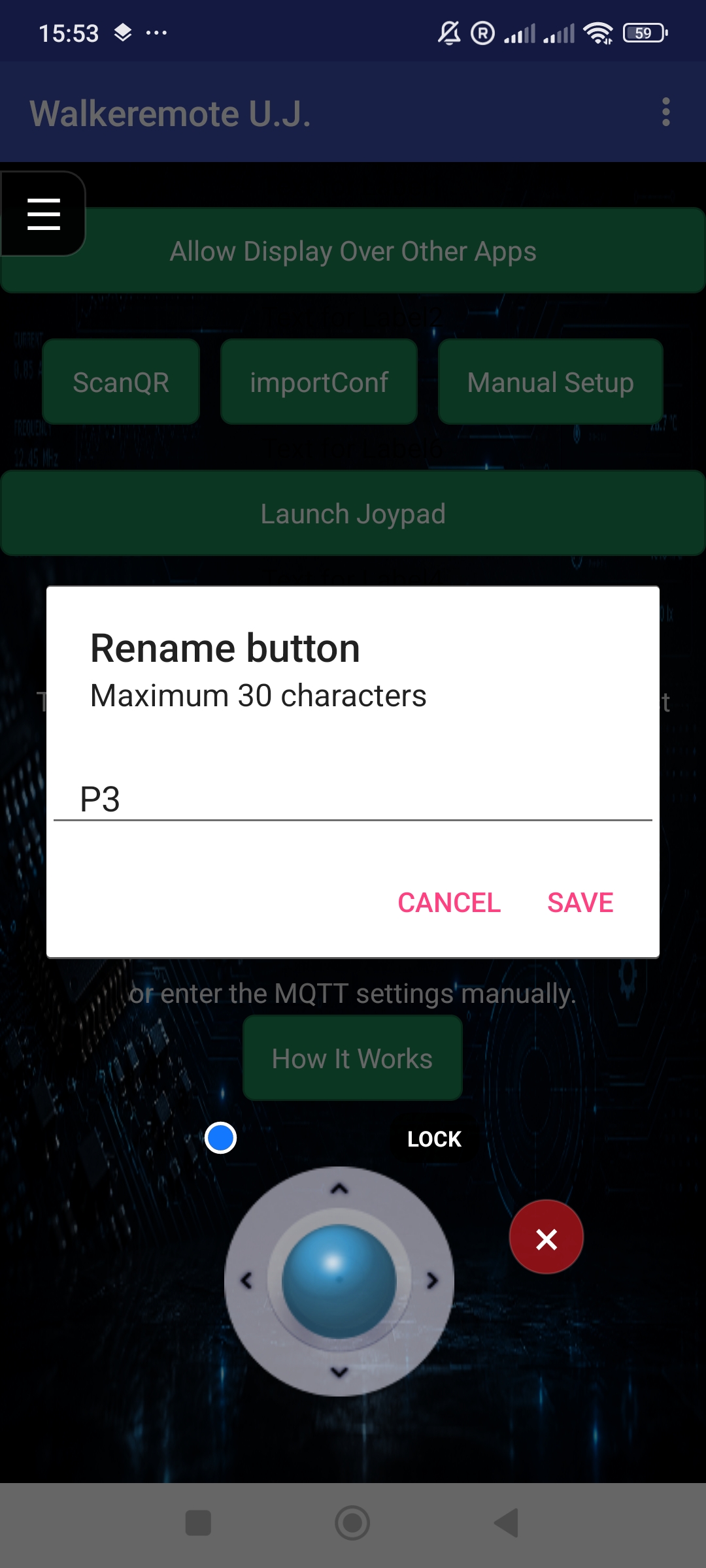
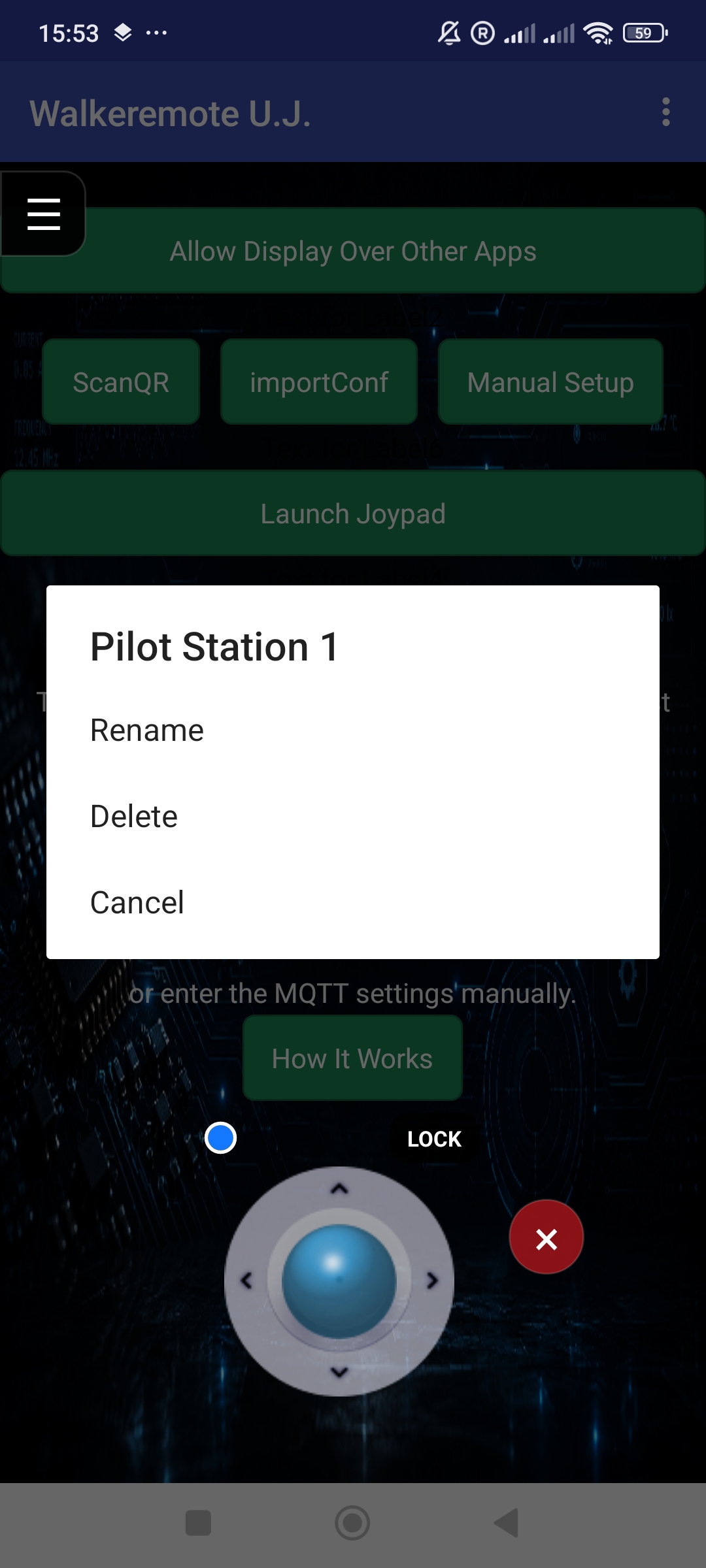
The app supports renaming command buttons, with a limit of 30 characters shown in the rename dialog. This makes a project easier to understand than a list of generic button names. A Pilot Station also has its own Rename and Delete options.
Give a command button a useful name, up to 30 characters.The Pilot Station menu provides Rename and Delete options.
Close the pad or the whole overlay
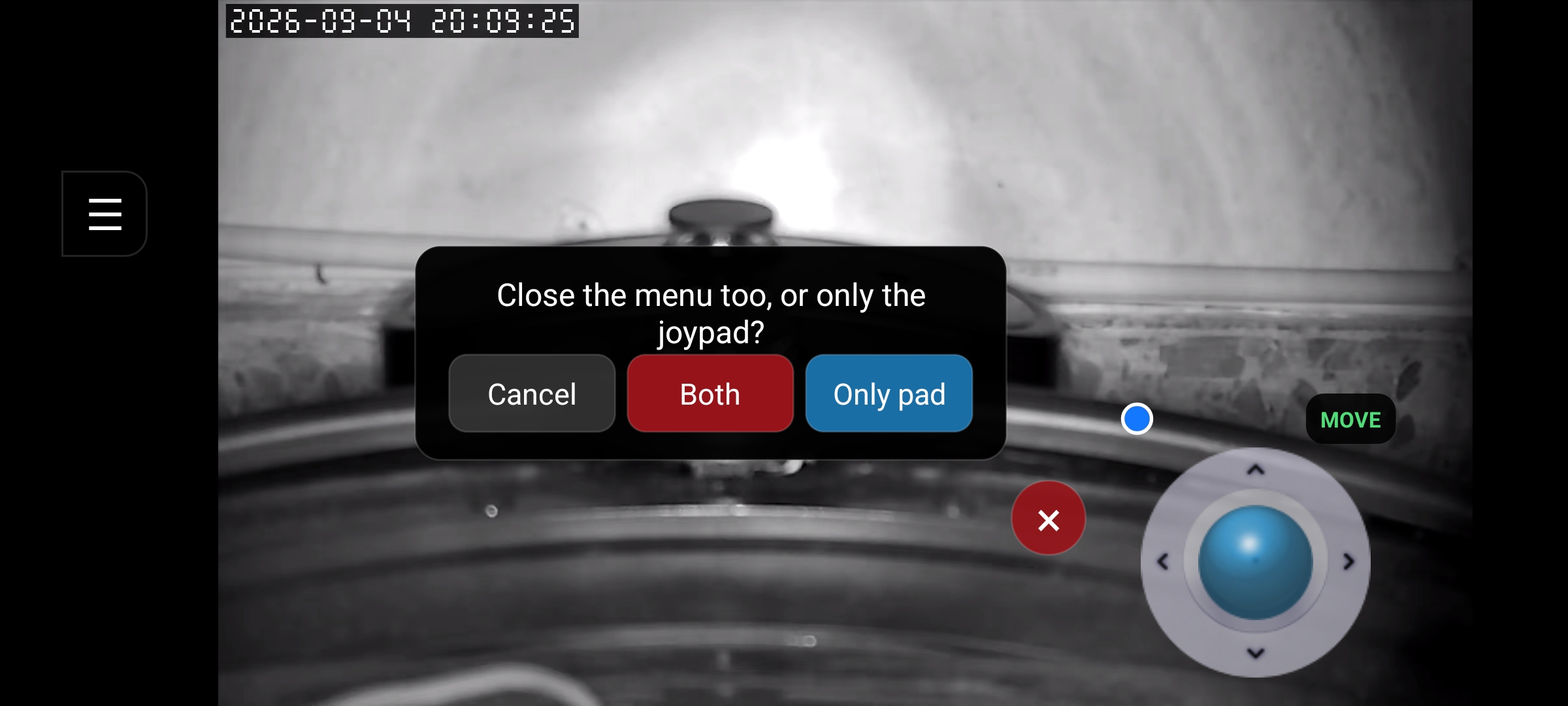
When closing the joypad, a dialog asks whether to close the menu too. Only pad closes the joypad while keeping the menu available; Both closes both controls, and Cancel returns to the current view.
Choose whether to close both the menu and the joypad, or only the pad.
Watch it controlling the Roomba
The following video demonstrates the joypad in use. The demonstration combines the Walkeremoteboard connection with an Android control interface that can sit over the camera view.
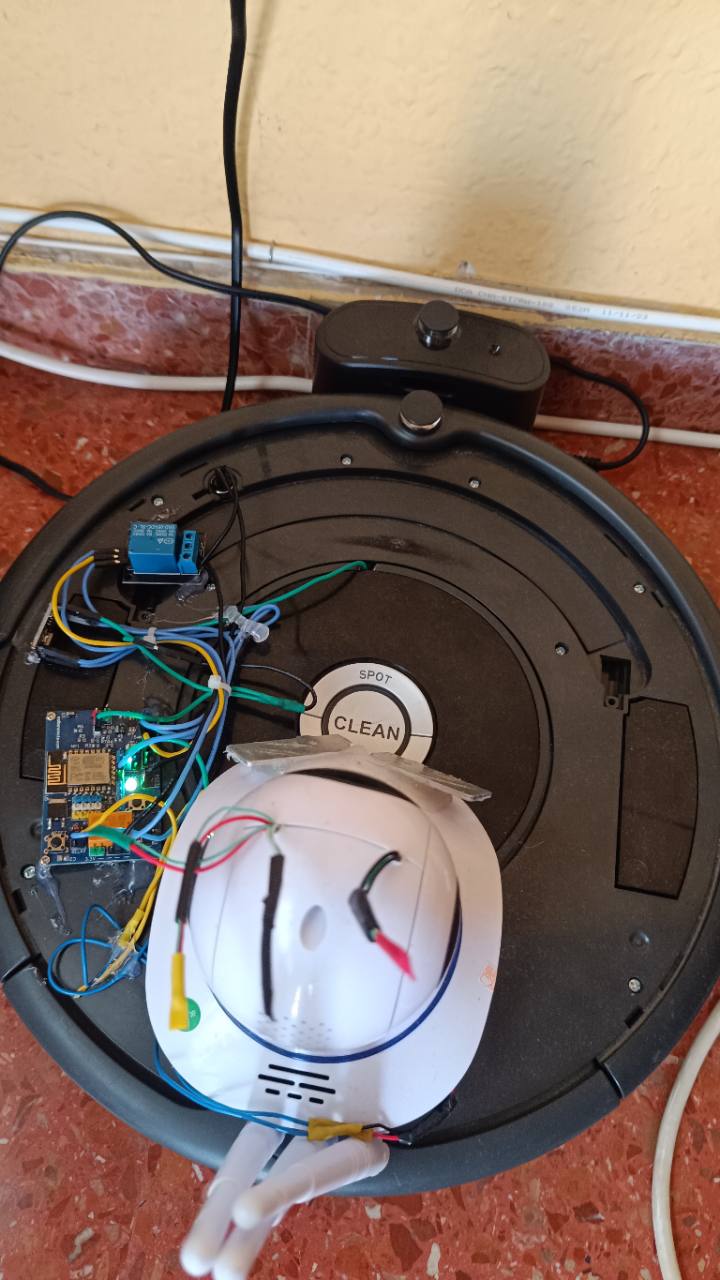
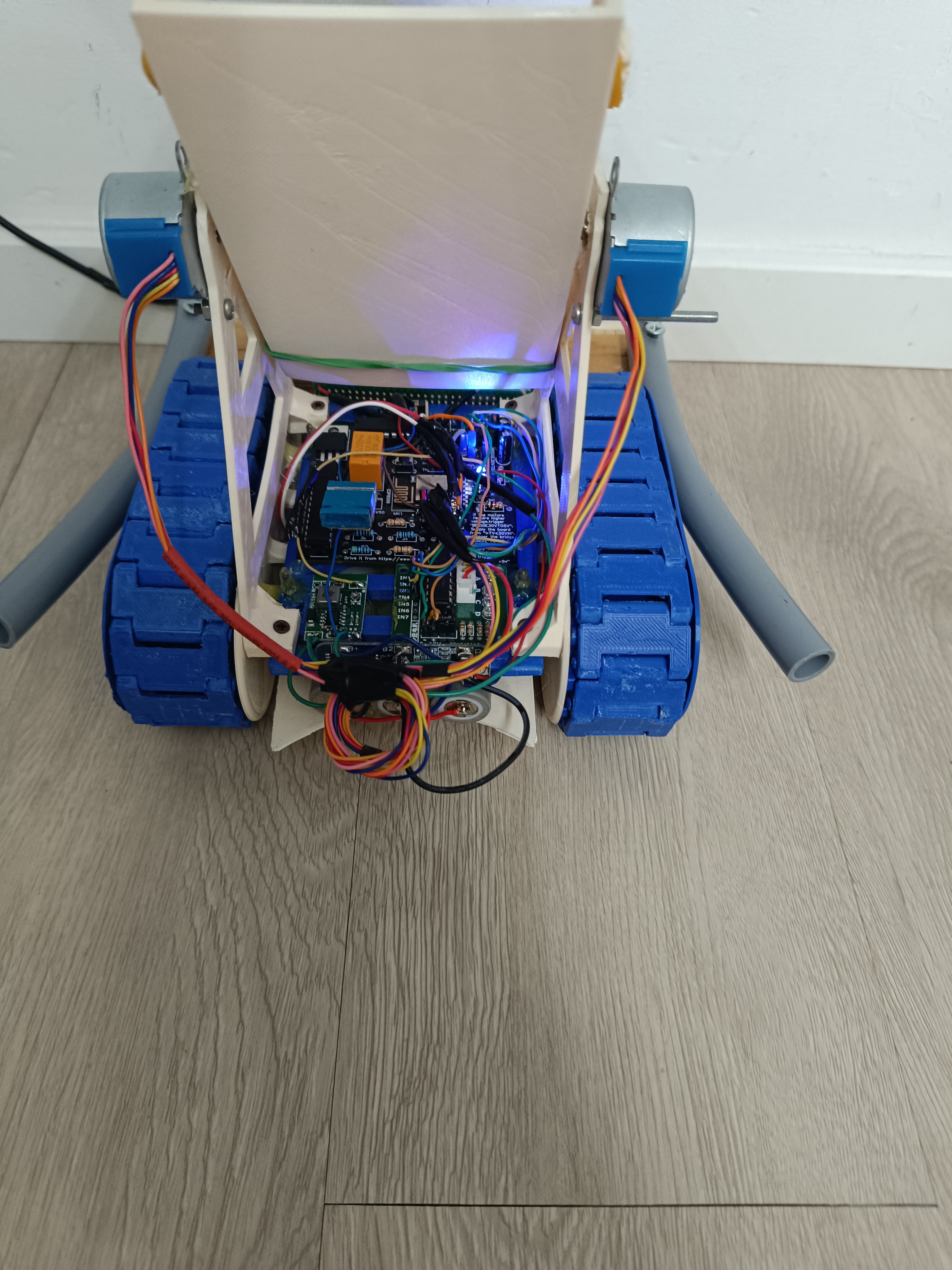
I have been modifying my Roomba by mounting a Walkeremoteboard on top of it. The idea is simple: control the robot remotely, take it to the spot that needs cleaning, vacuum the dirt there, and then bring it back to its charging base.
The Roomba used in this project is an older model, without built-in Wi-Fi or the advanced connected features of newer robots. Its original remote control relies on infrared. Adding the Walkeremoteboard gives this older machine a way to receive commands over the network through its serial interface.
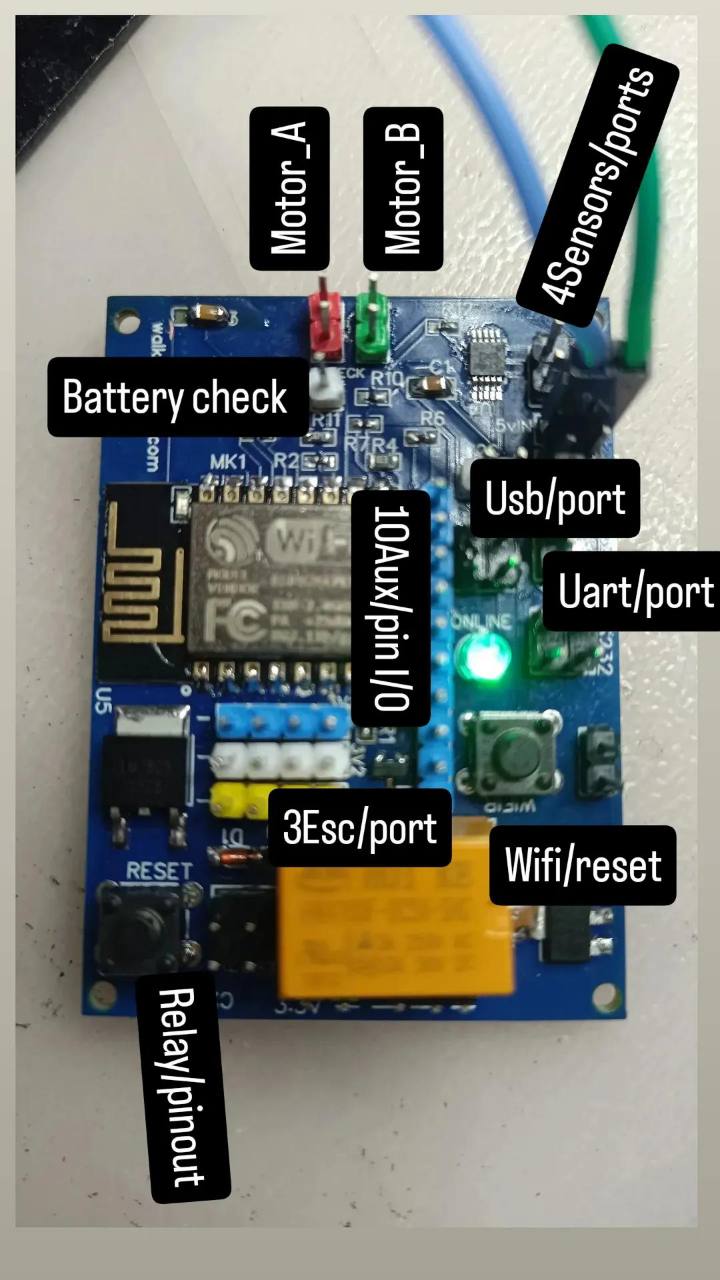
The prototype, with the Walkeremoteboard and additional hardware mounted on the Roomba.A closer look at the board and its connections, including the UART port.
Using the Roomba's own interface
For this project, I use the RX and TX serial signals on the Roomba's onboard connector to exchange commands and read the sensor data available through its interface. This lets the Walkeremoteboard work with the robot's existing electronics, rather than replacing its sensors or controlling each motor separately.
The exact commands and sensor information depend on the Roomba model and its supported serial interface. These photos show my prototype; they are not a pin-by-pin wiring guide.
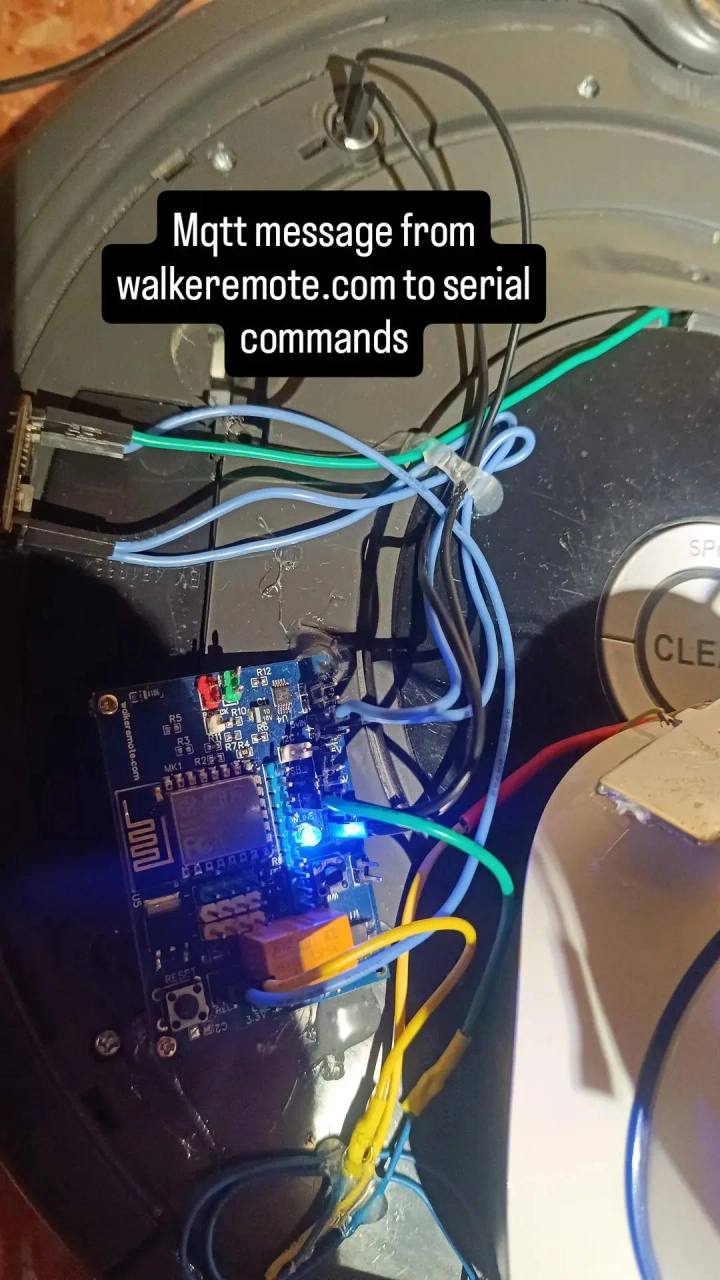
From MQTT messages to serial commands
The Walkeremoteboard acts as the link between walkeremote.com and the Roomba. MQTT messages received by the board are translated into serial commands for the robot. The goal is to guide it remotely and activate cleaning only where I want it.
The connection that turns remote MQTT messages into serial commands for the Roomba.
Clean a chosen spot, then return to charge
Instead of starting a complete cleaning cycle, I want to drive the Roomba to a specific area, collect the dirt there, and then bring it back to the charging base. The remote control is the useful part of this experiment: deciding where the robot should work and when it should stop.
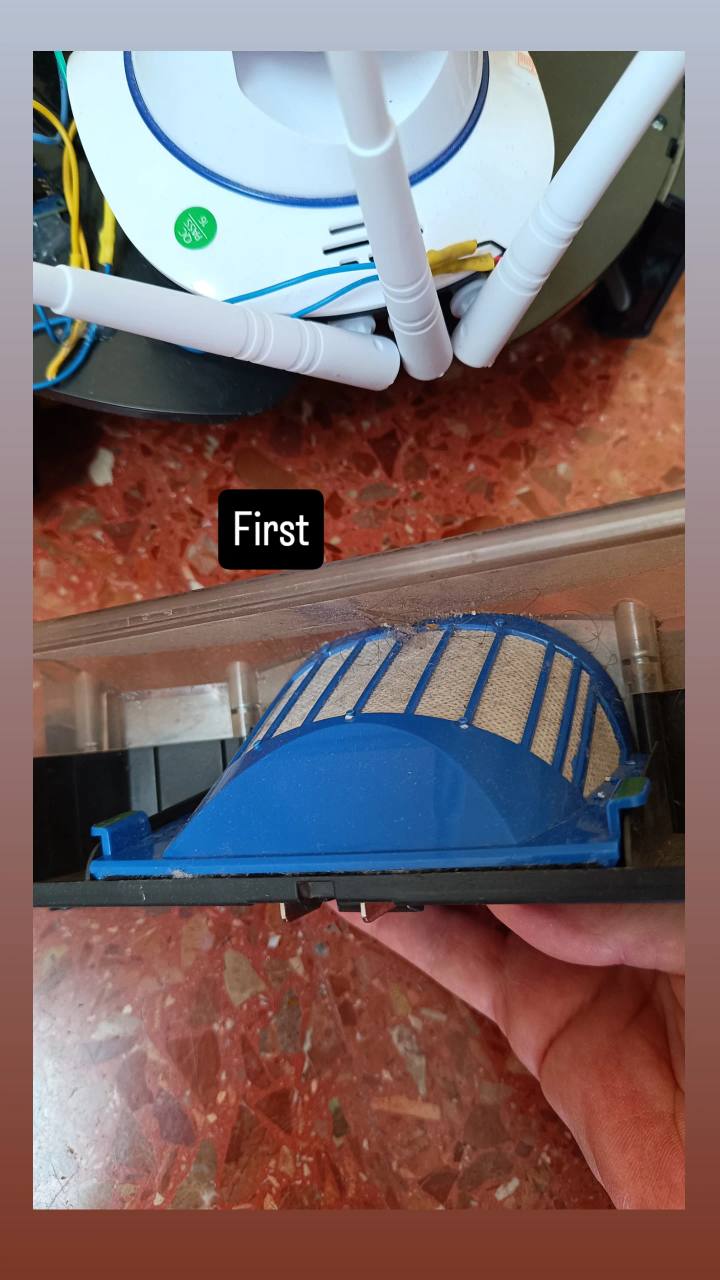
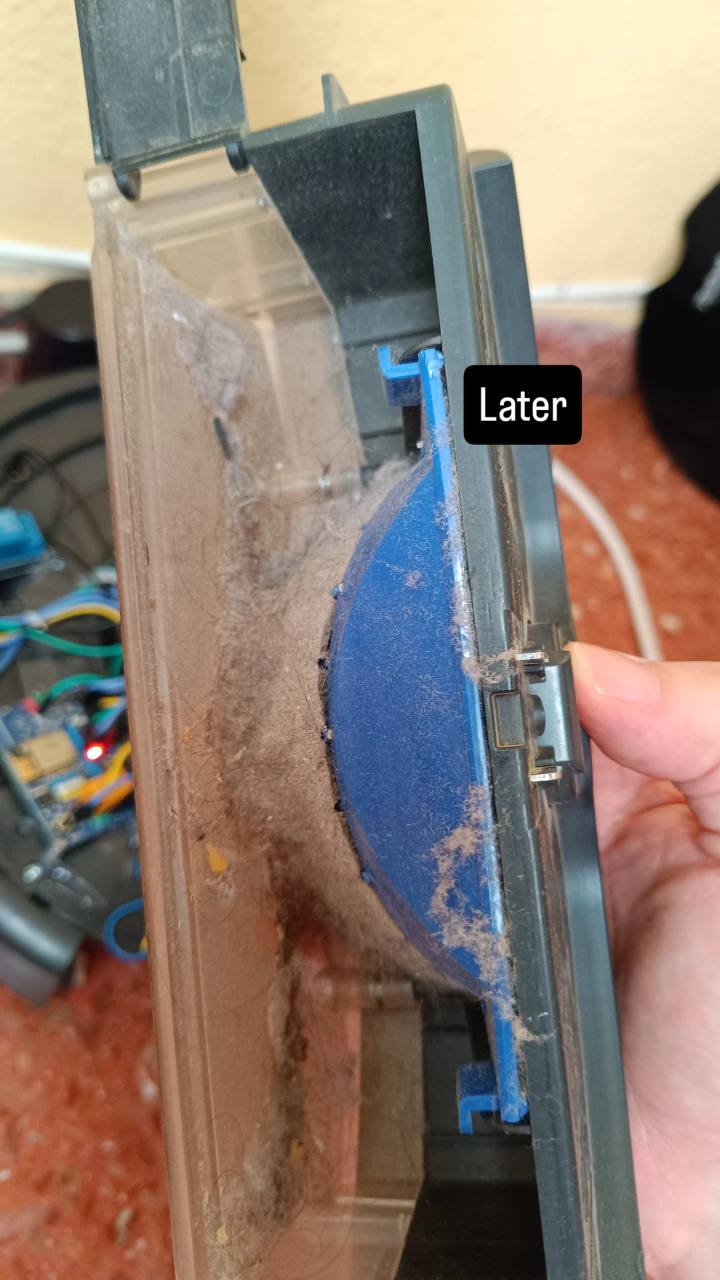
The following photos show the dust container before and after the cleaning test.
Before the test.After the test: the dirt collected in the container.
This is another way I am experimenting with the Walkeremoteboard: adding remote control to a robot I already have, while making use of its onboard commands and sensors.
A first step towards teleoperating domestic robots
Perhaps in the not-too-distant future, we will need to teleoperate domestic robots when something goes wrong. If a robot gets stuck or a fault interrupts its normal operation, remote human assistance could help assess the situation and, where the robot is still able to respond, guide it through the next steps. This experiment could be a first approach to that idea: combining the robot's onboard capabilities with a person who can intervene from a distance.
WalkeremoteBoard_rev5: corrections, testing and new experiments
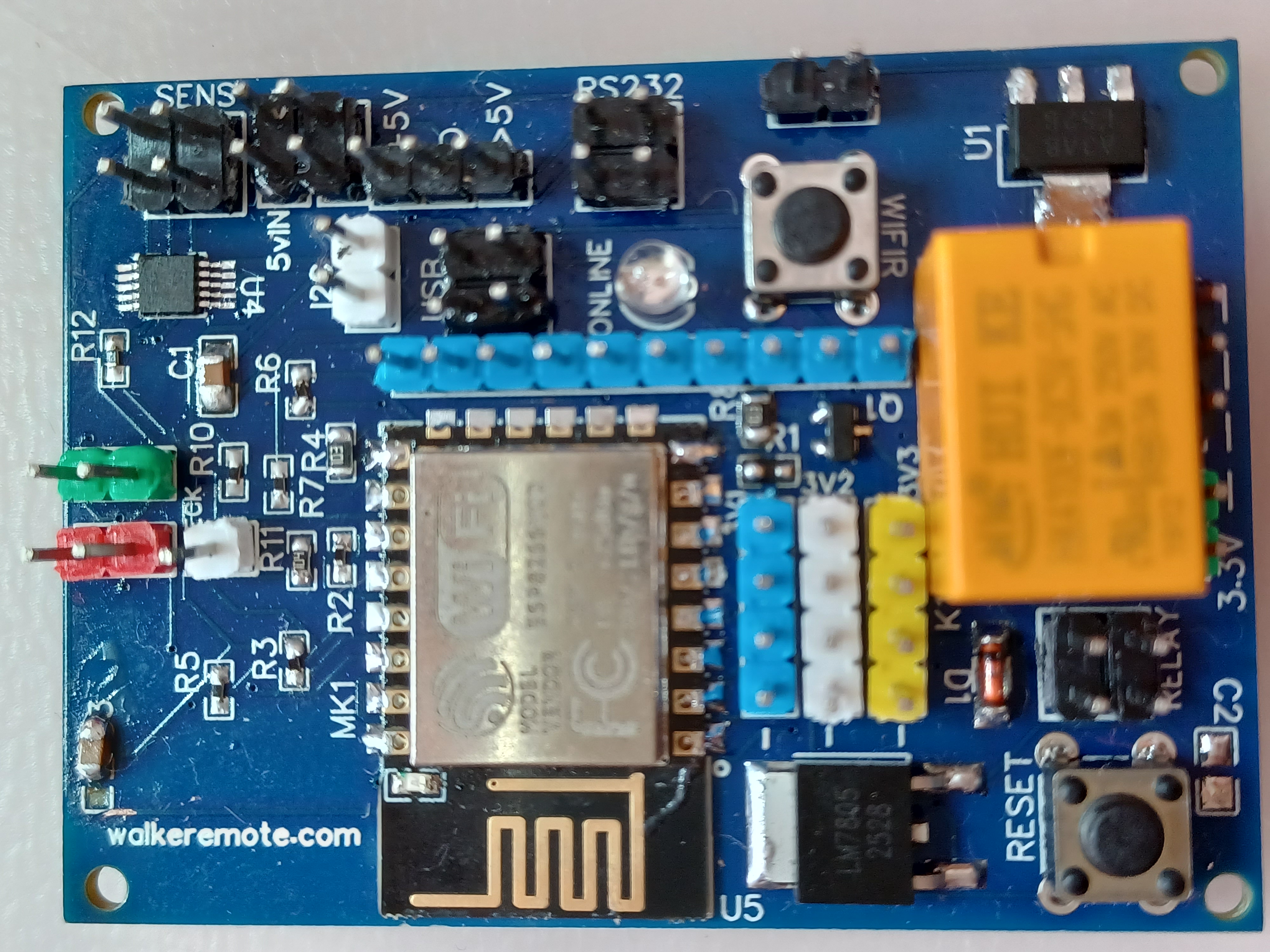
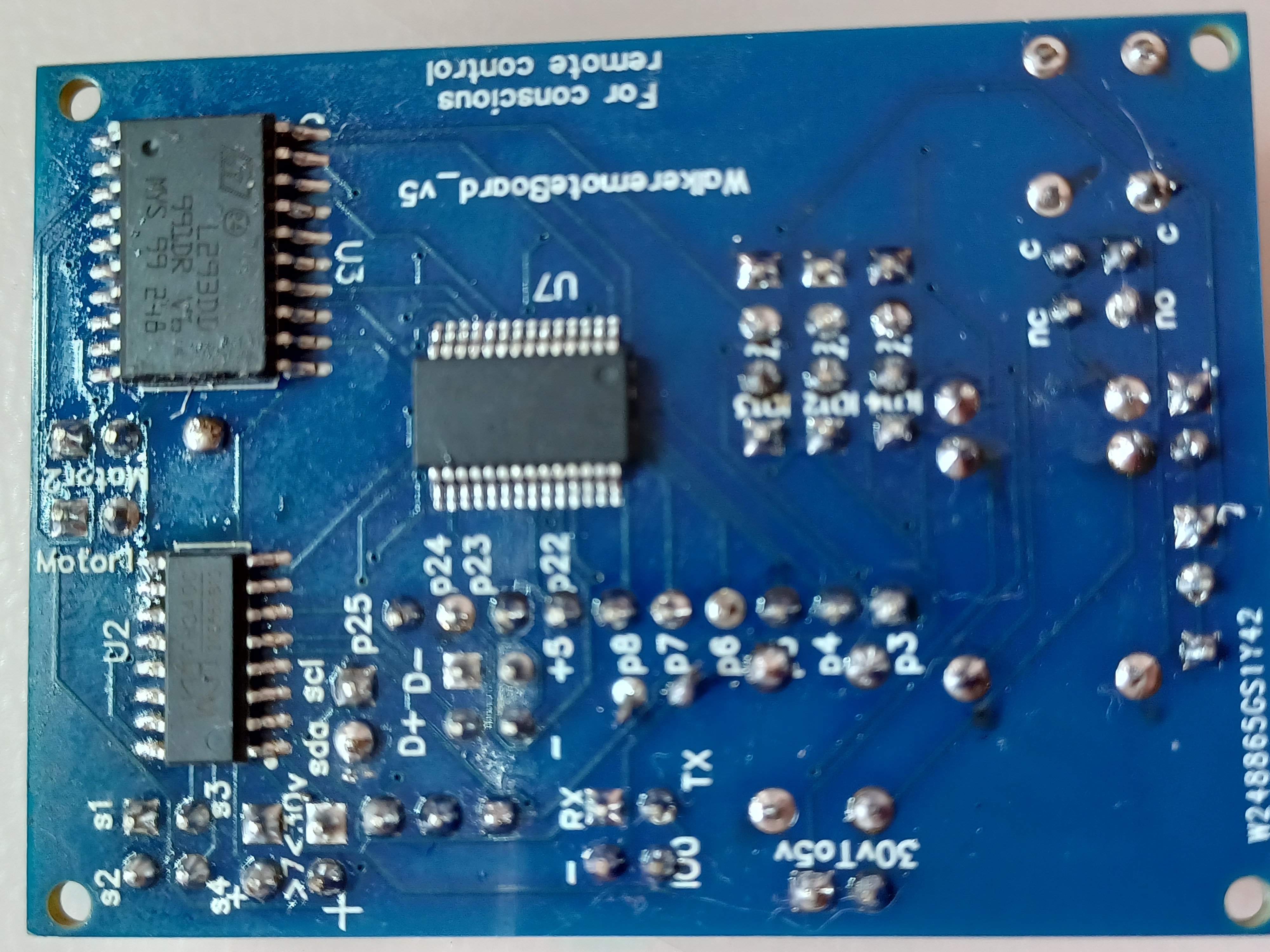
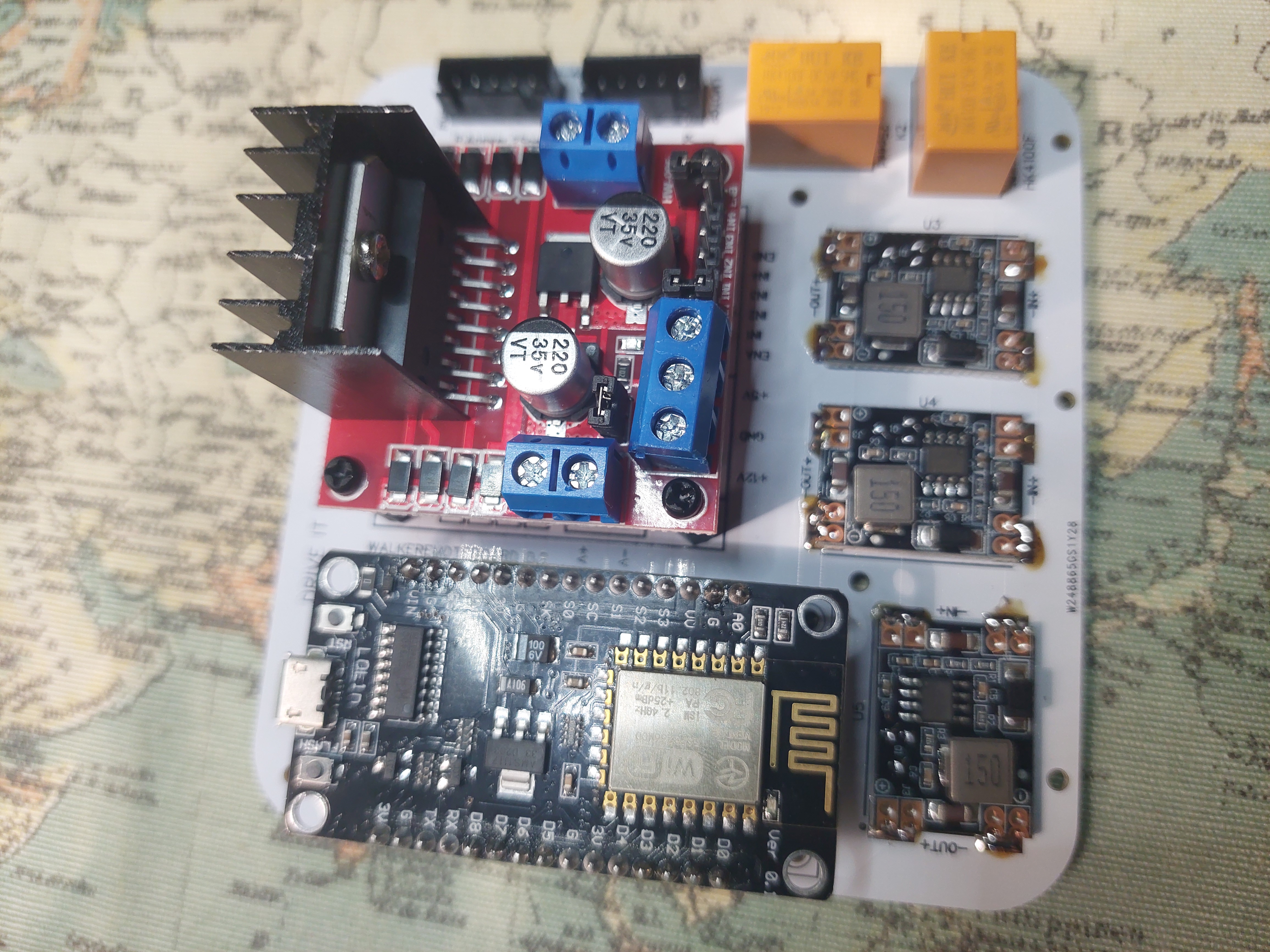
With the WalkerRemote Rev5, I corrected some issues that were present in the previous Rev4.
After having the board manufactured by my trusted factory, I realized that some of the ESP8266
pinouts were not correct. For this reason, I created a new revision, trying to improve the layout
and make the board more stable and functional.
Unfortunately, since I assembled the prototype manually with the few tools I had available —
small hot air station, non-professional flux and recovered components — the final appearance of
the board looks a little rough. However, considering that it is a hand-assembled prototype,
the board works extremely well.
During the assembly, I also encountered some difficulties with the CH340C component,
which is used to interface the USB port with the ESP8266. In particular, I ended up with
a component that apparently did not have the internal 12 MHz crystal, or possibly had some
issue related to resistors with incorrect tolerance. In the end, after desoldering and soldering
another CH340C that I had been using on an old through-hole board, everything started working correctly.
To complete the prototype, I also recovered some resistors by desoldering them from old boards.
Despite these difficulties, the WalkerRemote Rev5 works perfectly. Of course, the final optimization
will depend heavily on the firmware that will be developed and updated over time.
So far, I have equipped the board with an internal server, from which it is possible
to configure several parameters, including:
Wi-Fi SSID and password for network connection;
the four analog sensor input ports: A0, A1, A2 and A3;
battery voltage reading and calibration values;
enabling or disabling email notifications;
settings related to email addresses, passwords and recipients;
ESC driver values, useful for defining the rotation direction of brushed motors.
The board can therefore be configured directly through a web interface,
without having to manually modify the code every time.
To see the WalkerRemote Rev5 in action, you can watch the videos published on my
YouTube channel at the following link:
Youtube video demonstration
In addition, since I have a strong passion for music and audio experimentation,
I also wanted to test the possibilities offered by the ESP8266’s internal 32-bit processor.
In particular, I started some experiments related to frequency generation, sound effects
and small digital synths.
These experiments will be available in the “Frequencies and Music”
section of the landing page: actionoise.com
WalkeremoteBoard-rev4 SMD components
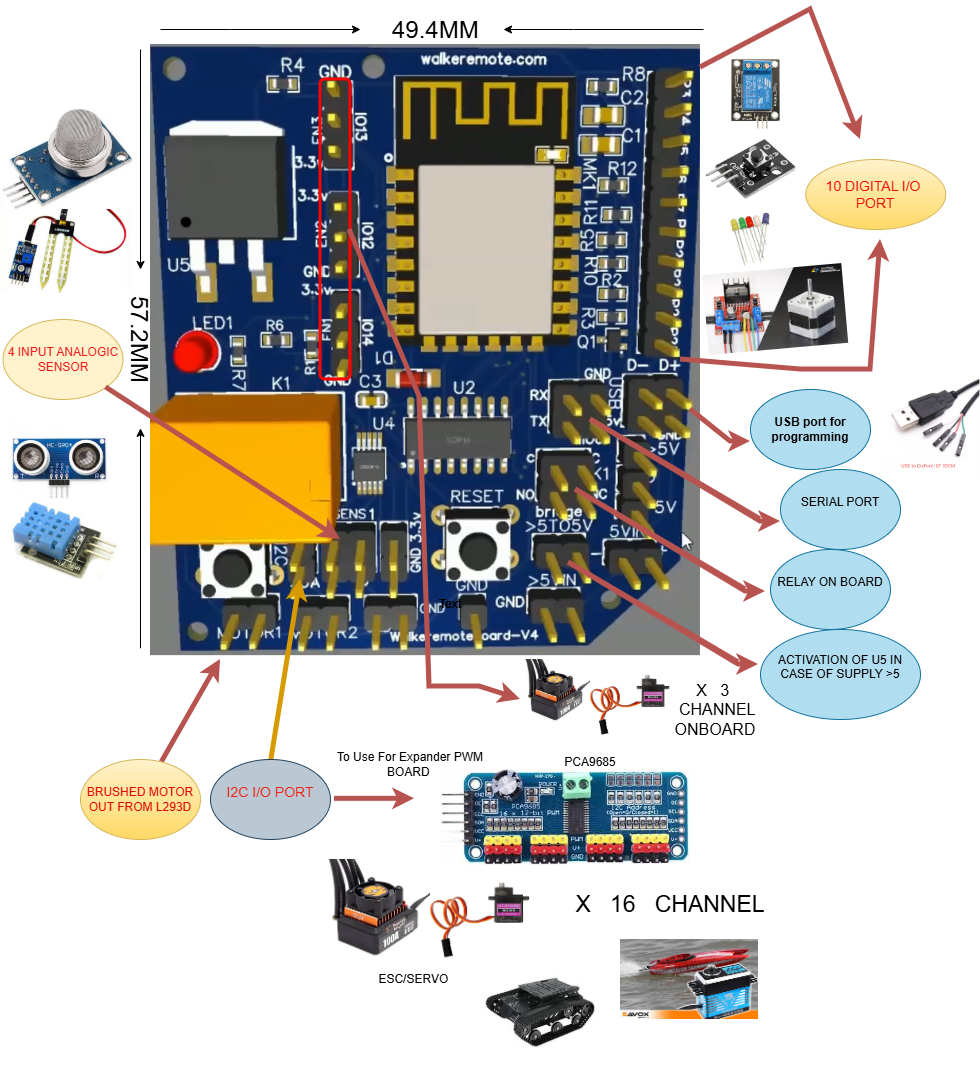
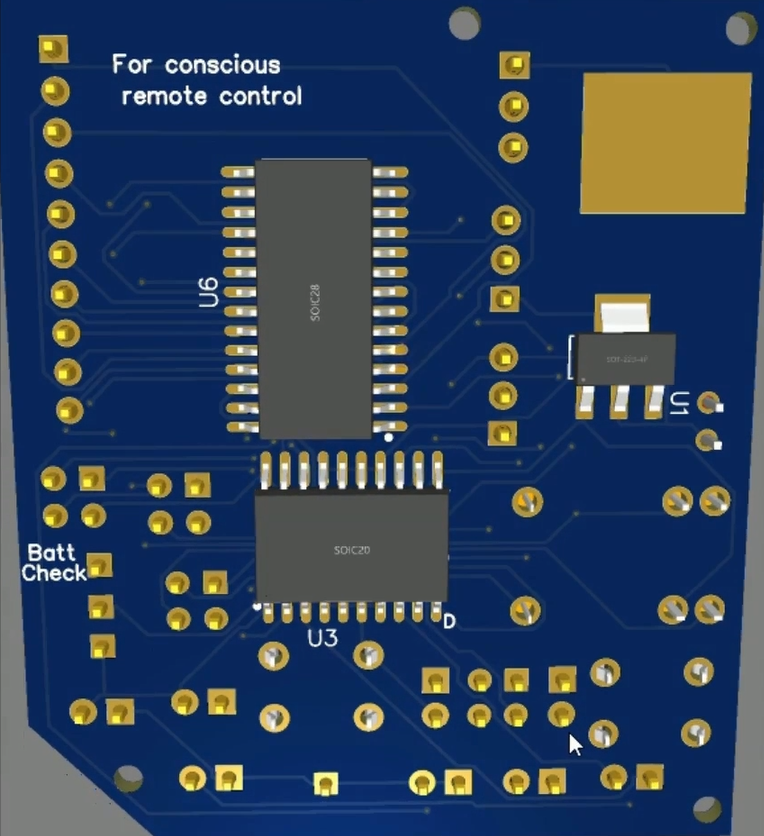
As shown in the photos, I developed a new version of the board by reducing its size to about half of the original one
described further down on this page. Despite the more compact design, I added a particularly important component for
analog signal acquisition: the ADS1115, an analog-to-digital converter with an I2C interface. The sensors shown in the
photos are just a few examples among the many analog devices that can be connected.
The ADS1115 was connected to the ESP8266 I2C bus through the SDA and SCL lines, while the ADDR pin of the ADS1115 was
connected to GND in order to set its I2C address to 0x48. This configuration makes it possible to clearly differentiate
it from the MCP23017, which continues to operate normally on the same I2C bus using a different address. In addition,
the SDA and SCL pins have been left available for the connection of further compatible
I2C peripherals with different addresses.
As shown in the images, the board also allows the connection of motor ESCs, as well as additional sensors or microcontrollers,
making it possible to significantly expand its functionality.
On the opposite side of the board there is the BattCheck pin, which, through a resistor divider, is connected to the A0 pin of the
ESP8266. This makes it possible to remotely monitor the battery voltage through a dedicated function already implemented in the
source code.
When used with drone ESCs, the board can be powered directly by using the 5V output that some ESCs provide for powering radio
receivers. If, on the other hand, motors driven by the onboard L293D driver are used, it is possible to enable the 5V
regulator through the bridge shown in the photos and power the motor driver with a higher voltage, up to 30V, through
the dedicated D pin.
Finally, I added three additional I/O pins: IO12, IO13, and IO14, which can be used to enable or disable extra functions,
or simply to control ESCs, servos, or other compatible devices.
“For Conscious Remote Control”
is a phrase I added to the board to highlight the importance of human judgment in remote
operations. Even the most advanced AI cannot truly replace conscious human decisions, especially when unexpected
situations require flexible thinking and actions beyond predefined patterns, particularly when it is not possible
to be physically on site and there is an urgent need to close a valve or switch off a specific circuit.
For more information, check out the project on
GitHub
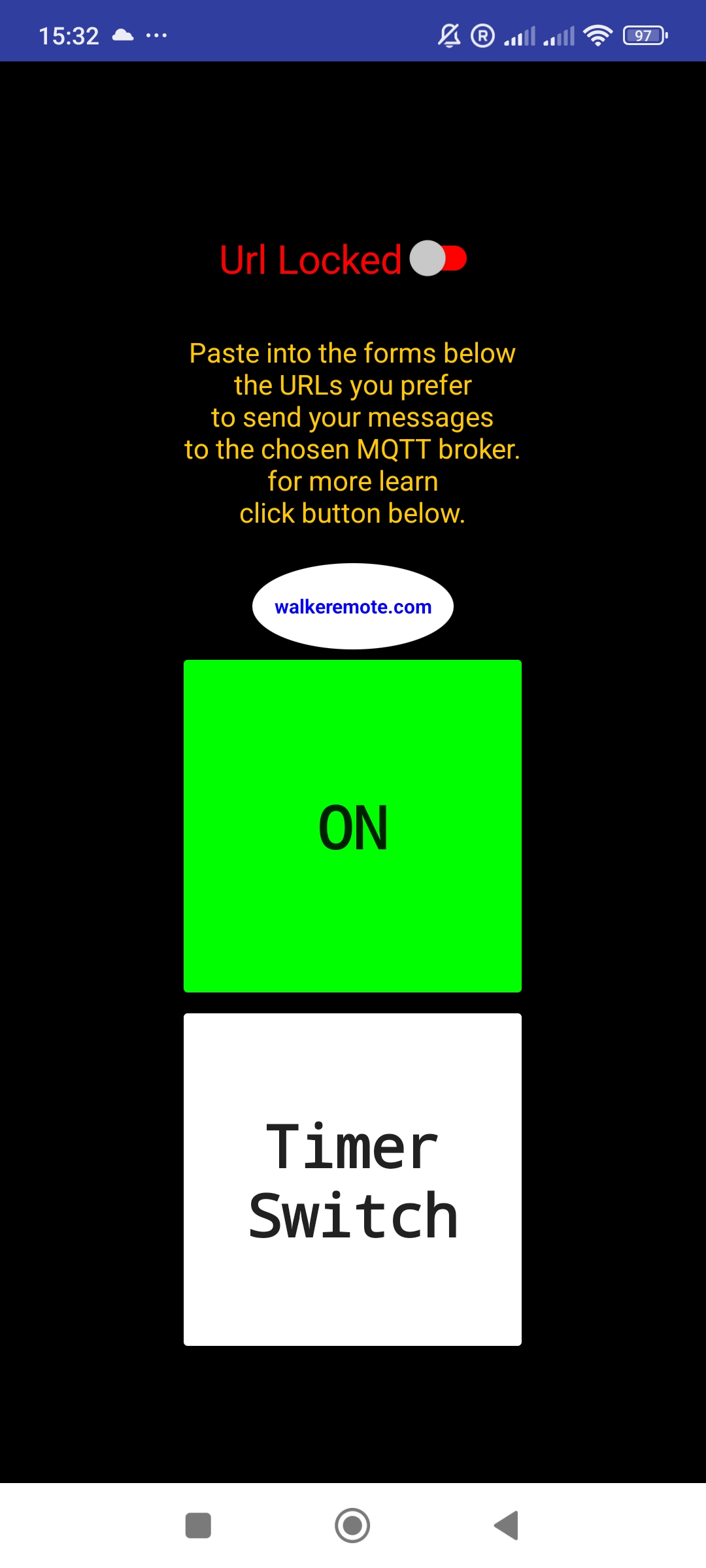
New WalkeremoteSwitch app for domotic use
I’ve been working on a new app, and I’d like to share a little preview here on the blog.
I’ve already posted a couple of photos that show how it works.
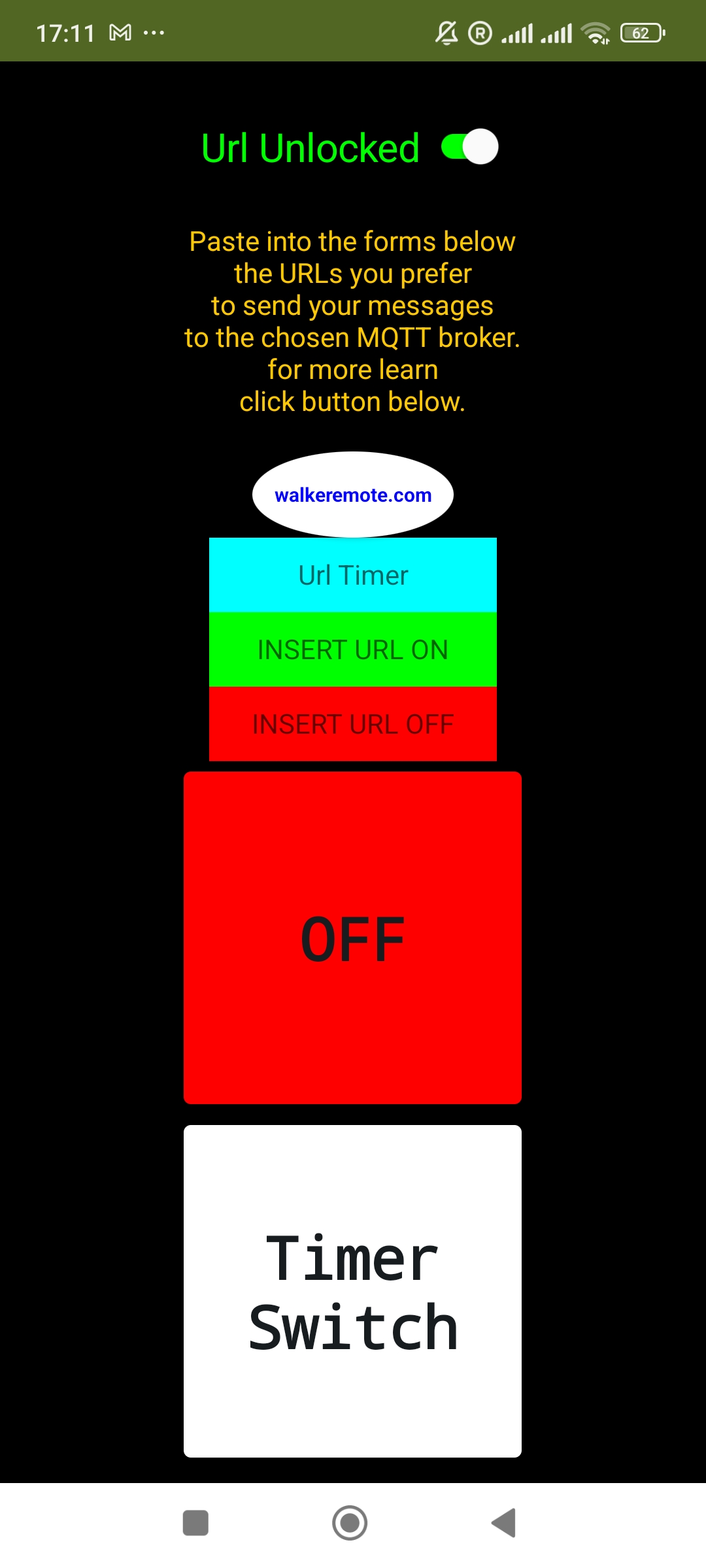
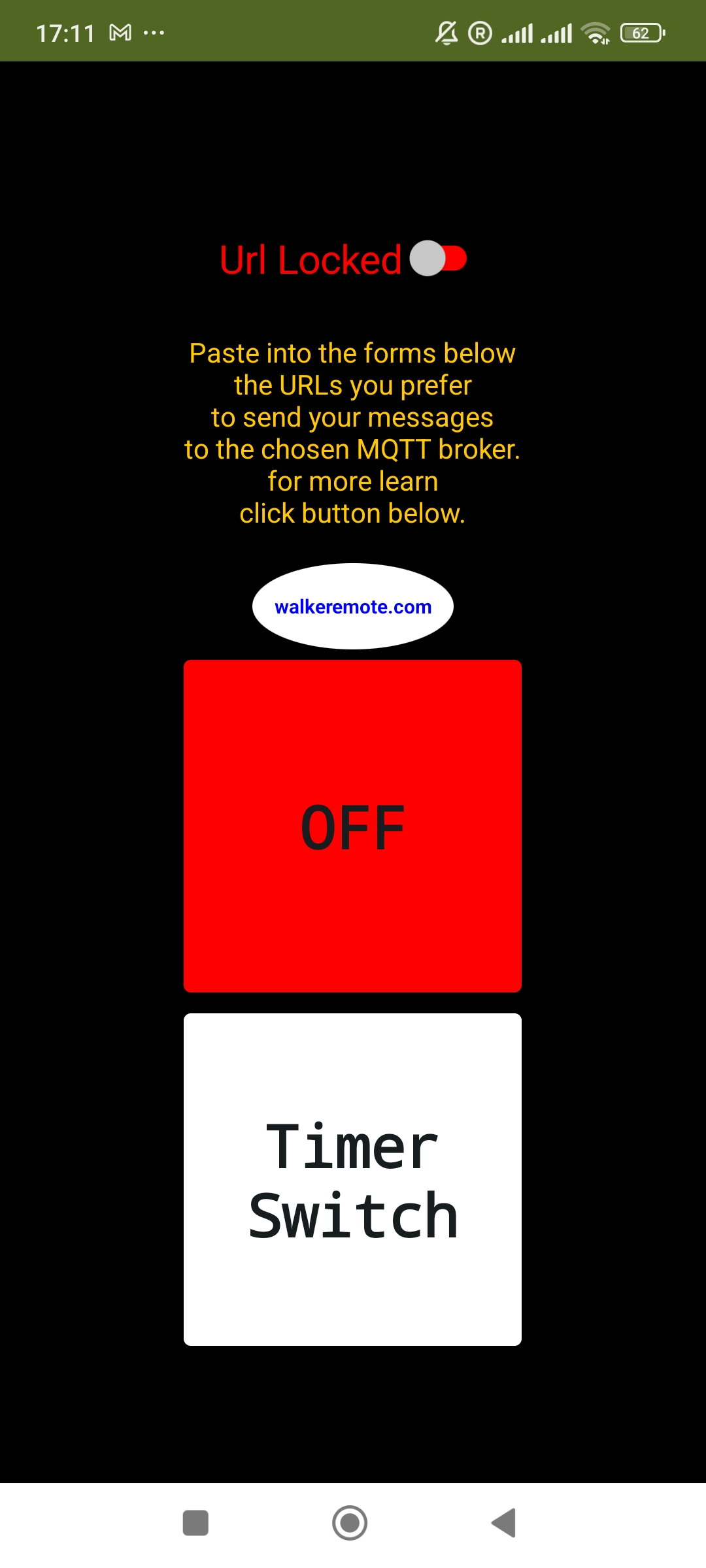
As you can see in the screenshots, the Lock/Unlock button lets you insert URLs that send MQTT commands to your hardware.
Once received, the hardware executes an action — for example, triggering a relay to switch on a lamp.
The app includes three forms:
The first one is for the timer URL. When you press the momentary button, the link points to a web page designed to send two MQTT messages:
one immediately when the button is pressed, and another after a delay that you can set directly in the URL.
This way, you can remotely trigger any kind of button.
The other two forms are dedicated to URLs for switching a relay ON and OFF, controlled by the green and red buttons.
Using URLs to Control The WalkeremoteSwitch01 App
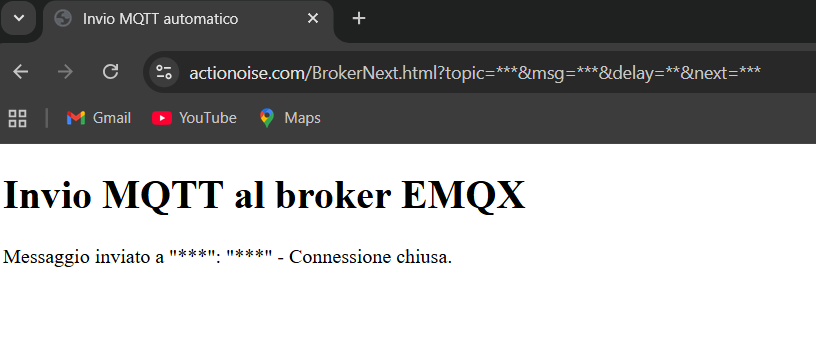
You can integrate two types of URLs into your app to send MQTT messages via a simple HTML page.
Once the links are clicked, the browser will open and indicate that the message has been sent.
You just need to replace the asterisks directly in the browser form as shown in the photo, as follows:
The same names used for the asterisks:
topic
msg
delay
next
will then be the same variables to use in the ESP8266 sketch, which will receive the preset messages and perform the chosen actions.
Below is the link to the video of the app in action.
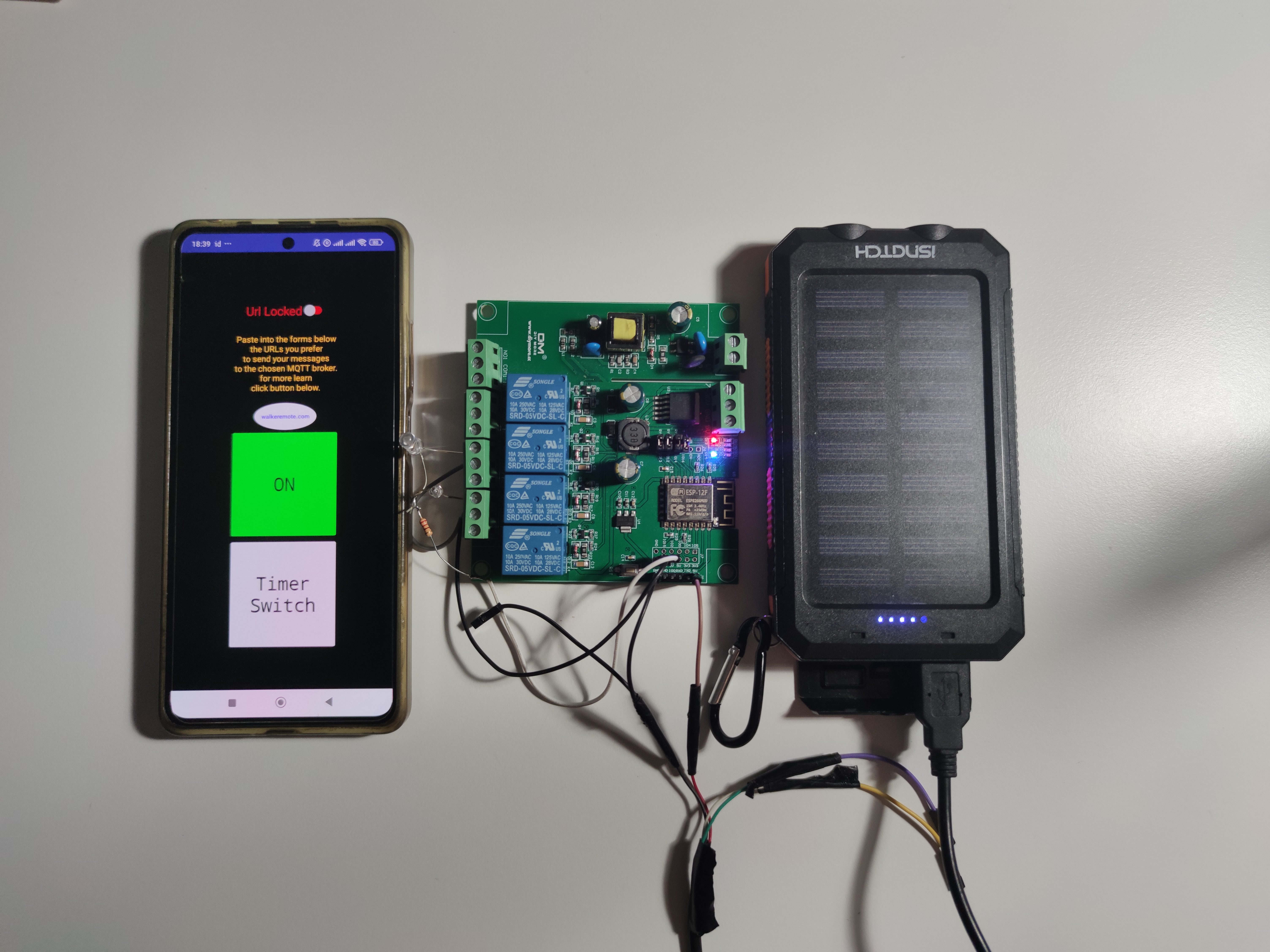
I used the same home automation board that I used in the experiment described a few lines below
(you can find the topic here)
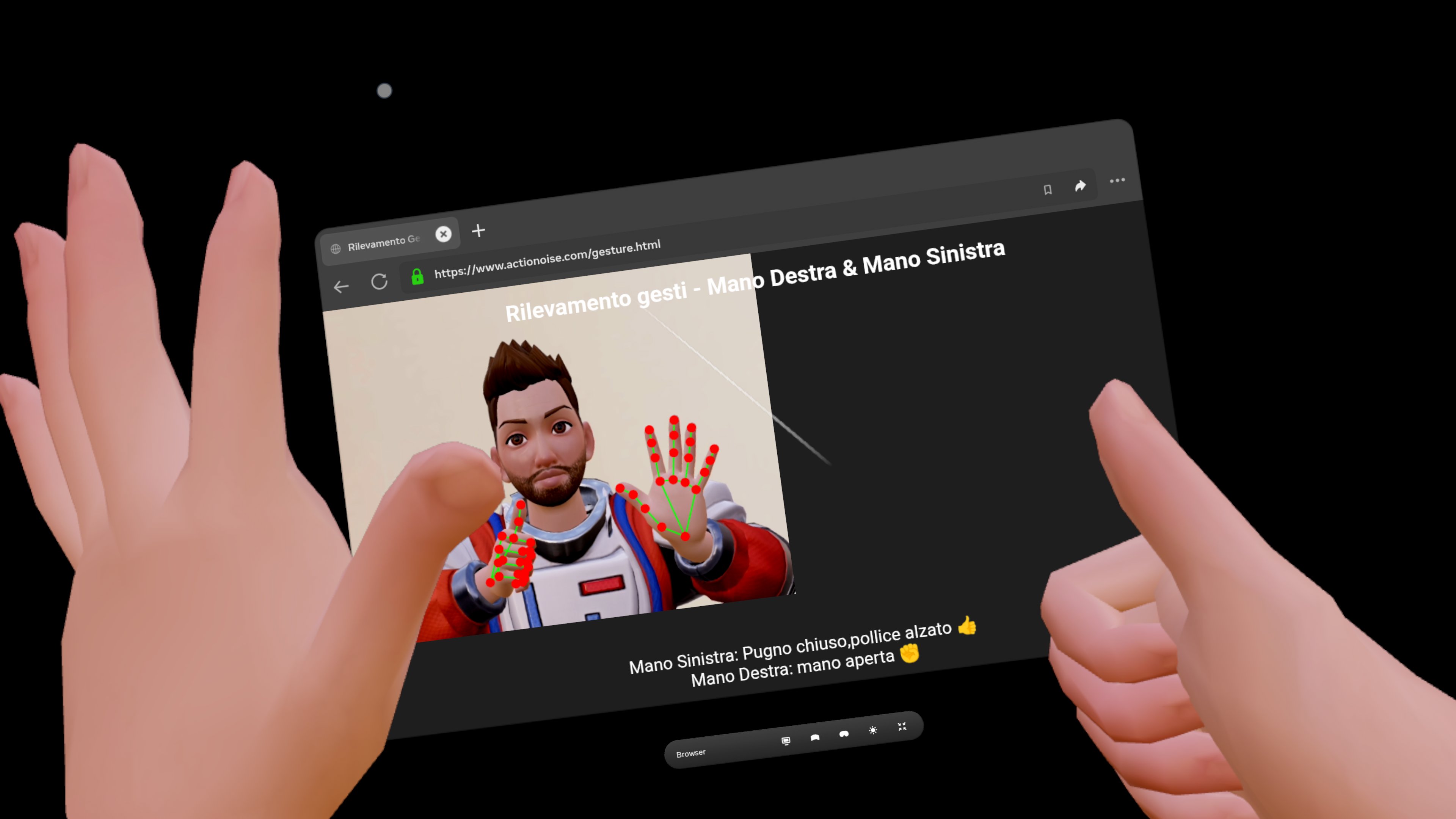
Today I started experimenting with the Meta Quest 3 sensors, using hand tracking as an interface to control home automation systems.
The idea is to transform natural gestures into intelligent commands, without the need for physical buttons or switches.
This connects directly to the concept of Web 4.0, where human–machine interaction becomes increasingly immersive, contextual, and personalized.
It’s no longer just about browsing content, but about merging the physical and digital worlds in real time, creating experiences where the web reacts to the body and the environment.
As a next step, I will also try to approach a motor control system, allowing me to control a walkeremoteboard through gestures.
The goal is to bring the same natural interaction logic into mobile robotics, combining virtual reality with physical automation.
Stay tuned on this page for upcoming news and developments.
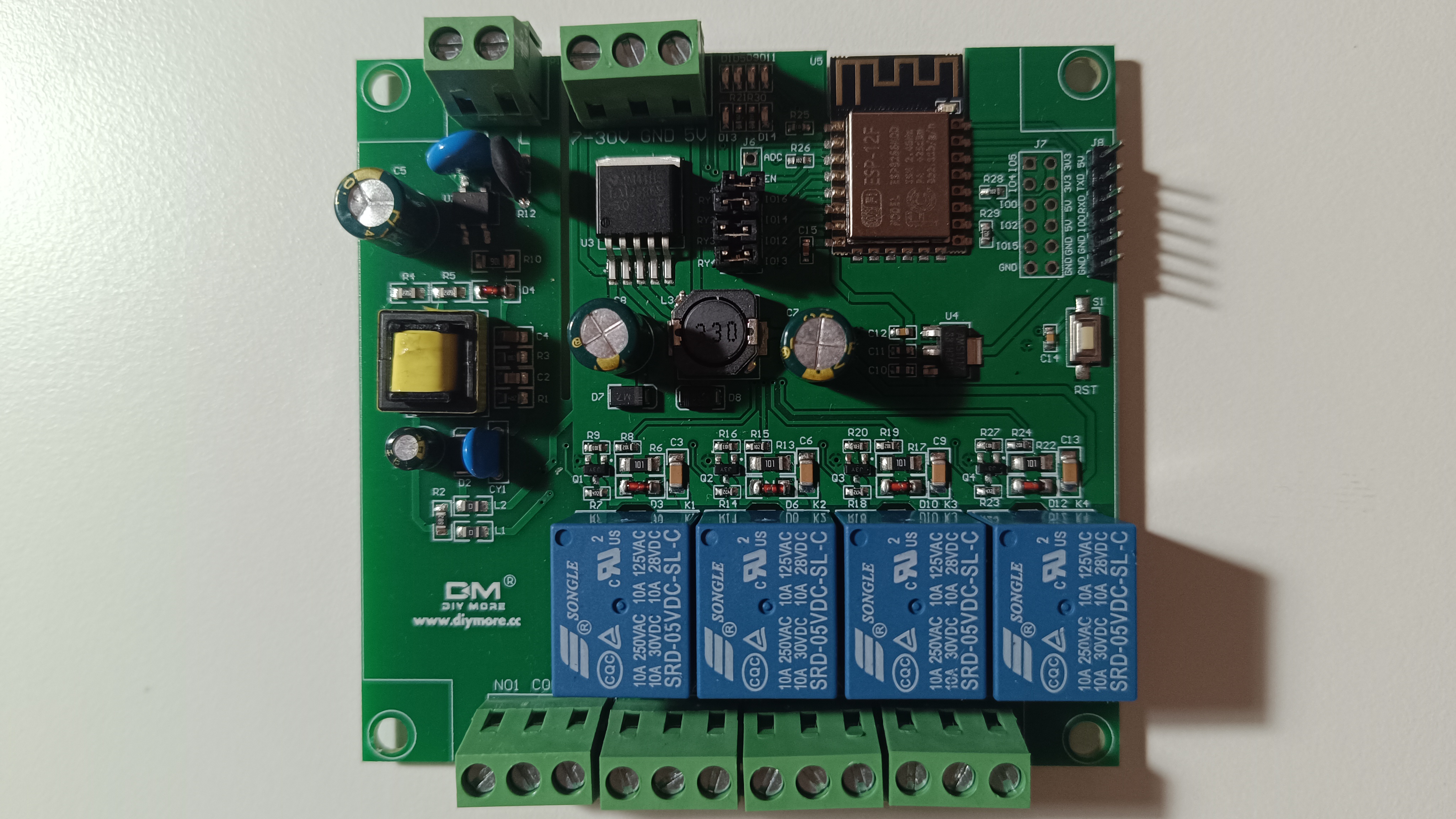
In this tutorial, we’ll take a look at a generic smart home relay board commonly found on platforms like AliExpress.
These boards are quite versatile, easy to program, and can be integrated with platforms like Walkeremote for remote control and automation.
Overview of the Board
The board featured in this tutorial was purchased from AliExpress:
in this Link
Include WiFi (ESP8266)
4 relays, each controllable individually
Multiple power input options:
220V AC, 7–30V DC, 5V DC
Programming pinouts, compatible with FTDI adapters
Extra GPIOs, which can be used to control motors, sensors, or other peripherals.
This makes it a great option for DIY home automation projects.
Programming the Board
The ESP8266 onboard makes it very easy to program this board using the Arduino IDE.
In this example (video link and code below), I’ve uploaded a generic sketch that connects the board to the Walkeremote platform,
allowing for MQTT-based remote control via topics and commands configured in the code.
Integration with Walkeremote platform
To control this board via the Walkeremote platform, simply flash the provided code with your specific MQTT credentials
(topics, command structure, etc.). Once set up, you can easily control each relay remotely from any device connected to Walkeremote.
#include <ESP8266WiFi.h>
#include <PubSubClient.h>

// WiFi credentials
const char* ssid = "yourSidWiFi";
const char* password = "yourPasswordWiFi";

// MQTT broker
const char* mqtt_server = "brokerMqttLink";
const int mqtt_port = 1883;
const char* mqtt_topic = "6653580bcf77af044070a45c";
const char* client_id = "mqttx_fa91203b";

// Mapping dei pin logici
const int pinD7 = 13;
const int pinD6 = 12;
const int pinD5 = 14;
const int pinD4 = 2;
const int pinD1 = 5;
const int pinD0 = 16;

WiFiClient espClient;
PubSubClient client(espClient);

void setup_pins() {
  digitalWrite(pinD1, HIGH);
  pinMode(pinD1 , OUTPUT);
  int pins[] = {pinD7, pinD6, pinD5, pinD0};
  for (int i = 0; i < 4; i++) {
    pinMode(pins[i], OUTPUT);
    digitalWrite(pins[i], LOW);
  }
}

void handleCommand(String msg) {
  msg.trim();

  if (msg.endsWith("665357ec0c4b136d3773e5ca")) {
    if (msg == "4350665357ec0c4b136d3773e5ca") digitalWrite(pinD7, HIGH);
    else if (msg == "5888665357ec0c4b136d3773e5ca") digitalWrite(pinD6, HIGH);
    else if (msg == "3395665357ec0c4b136d3773e5ca") digitalWrite(pinD5, HIGH);
    else if (msg == "3305665357ec0c4b136d3773e5ca") digitalWrite(pinD0, HIGH);
    else if (msg == "3311665357ec0c4b136d3773e5ca") digitalWrite(pinD7, LOW);
    else if (msg == "8380665357ec0c4b136d3773e5ca") digitalWrite(pinD6, LOW);
    else if (msg == "9983665357ec0c4b136d3773e5ca") digitalWrite(pinD5, LOW);
    else if (msg == "9903665357ec0c4b136d3773e5ca") digitalWrite(pinD0, LOW);
  }
  Serial.print("Eseguito comando: ");
  Serial.println(msg);
}

void callback(char* topic, byte* payload, unsigned int length) {
  String msg;
  for (unsigned int i = 0; i < length; i++) {
    msg += (char)payload[i];
  }

  Serial.print("Messaggio ricevuto [");
  Serial.print(topic);
  Serial.print("]: ");
  Serial.println(msg);

  handleCommand(msg);
}

void setup_wifi() {
  delay(10);
  Serial.println();
  Serial.print("Connettendo al WiFi: ");
  Serial.println(ssid);

  WiFi.begin(ssid, password);
  int tentativi = 0;

  while (WiFi.status() != WL_CONNECTED) {
    delay(500);
    Serial.print(".");
    tentativi++;
    if (tentativi > 30) {
      Serial.println("Errore WiFi. Riavvio...");
      ESP.restart();
    }
  }

  Serial.println("\nWiFi connesso. IP: " + WiFi.localIP().toString());
}

void reconnect() {
  while (!client.connected()) {
    Serial.print("Connessione al broker MQTT... ");
    if (client.connect(client_id)) {
      Serial.println("Connesso!");
      client.subscribe(mqtt_topic);
      Serial.println("Sottoscritto a: " + String(mqtt_topic));
      digitalWrite(pinD1, LOW);
    } else {
      Serial.print("Fallito, rc=");
      Serial.print(client.state());
      Serial.println(". Ritento in 5 secondi.");
      digitalWrite(pinD1, HIGH);
      delay(5000);
    }
  }
}

void setup() {
  Serial.begin(115200);
  setup_pins();
  setup_wifi();
  client.setServer(mqtt_server, mqtt_port);
  client.setCallback(callback);
}

void loop() {
  if (!client.connected()) {
    reconnect();
  }
  client.loop();
}
Published by Michele Tavolacci on
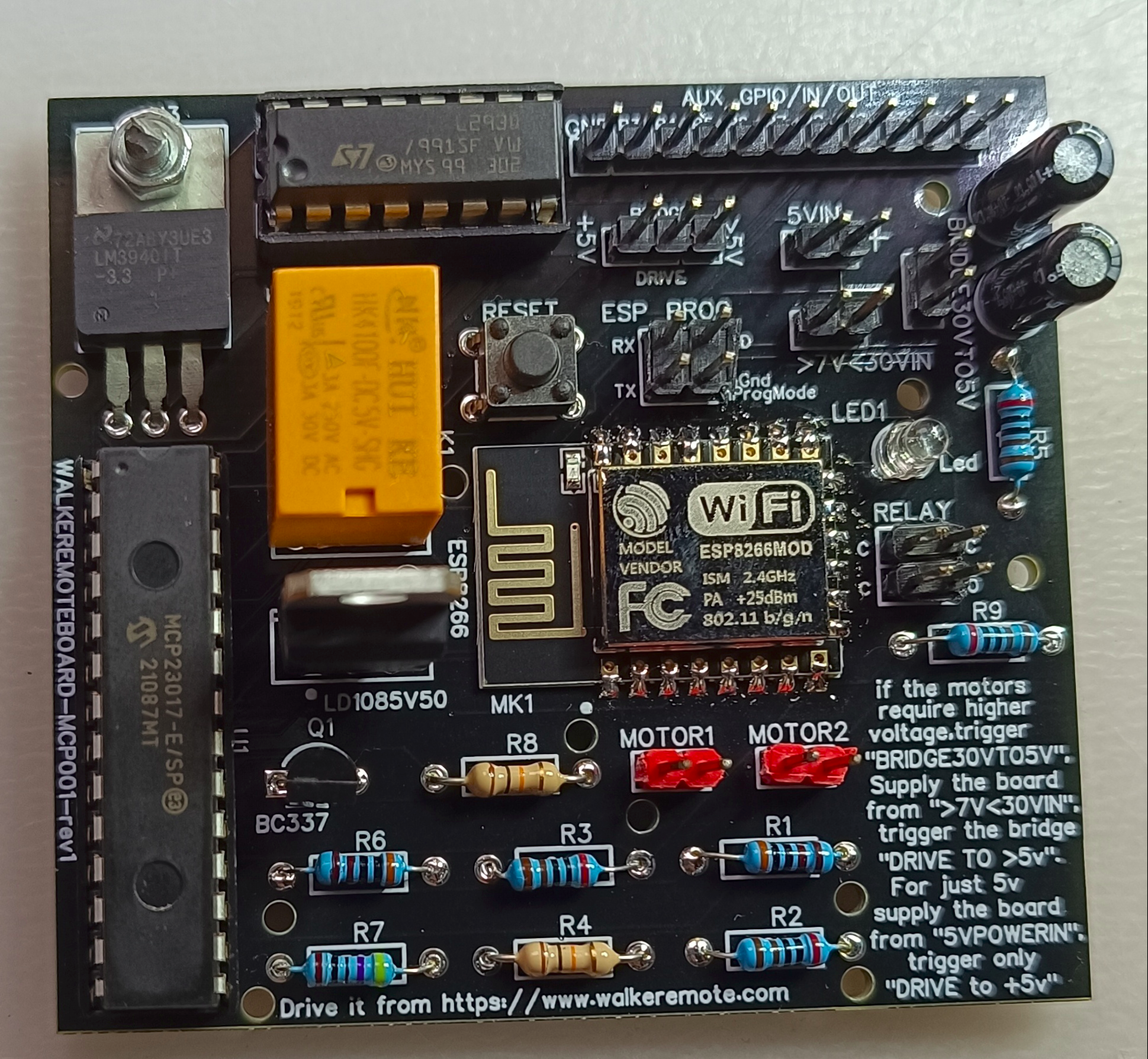
New Walkeremoteboard-mcp001-rev1
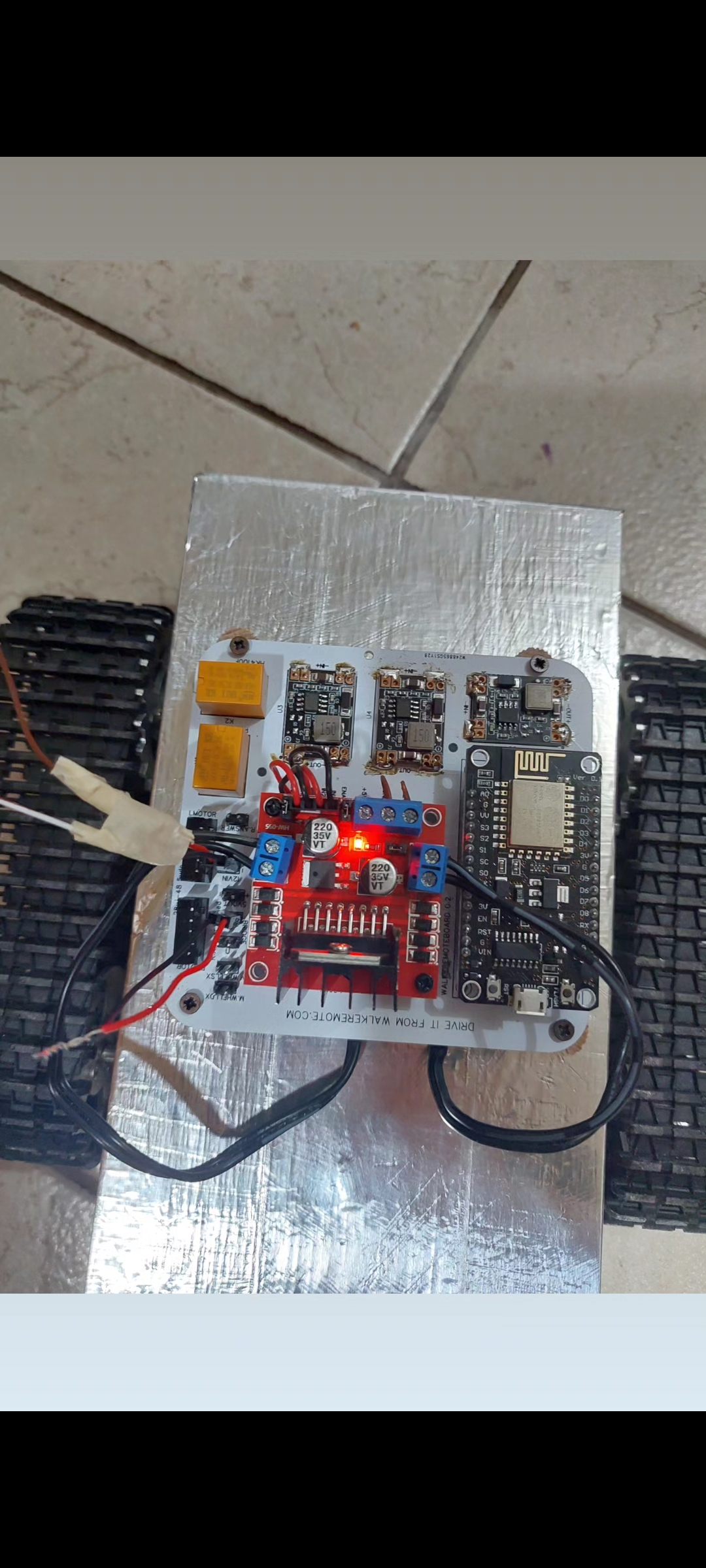
Easy to use yet offering advanced control capabilities, the Walkeremoteboard-mcp001-rev1 is designed to effortlessly manage Relay,
Stepper, Brushless, and wheel motors, accommodating voltages from 5V to 27V with appropriate bridges.
The onboard L293D driver facilitates direct usage of wheel motors, while an integrated relay allows for convenient control of headlights.
With 10 auxiliary pinouts, users can activate additional functionalities via auxiliary controls, already available in their own pilot station accessible on our website.
Additionally, accessing your pilot station is as simple as scanning the QR code on the board to obtain the email and password for login.
Moreover, with the new firmware, the board ensures it never loses internet connection.
In the event of disconnection while in operation, the motors will rotate in reverse for 20 seconds, allowing the board to reconnect within the WiFi coverage area.
The Walkeremoteboard has been enhanced with the latest firmware, which can be conveniently installed directly from the dedicated command page.
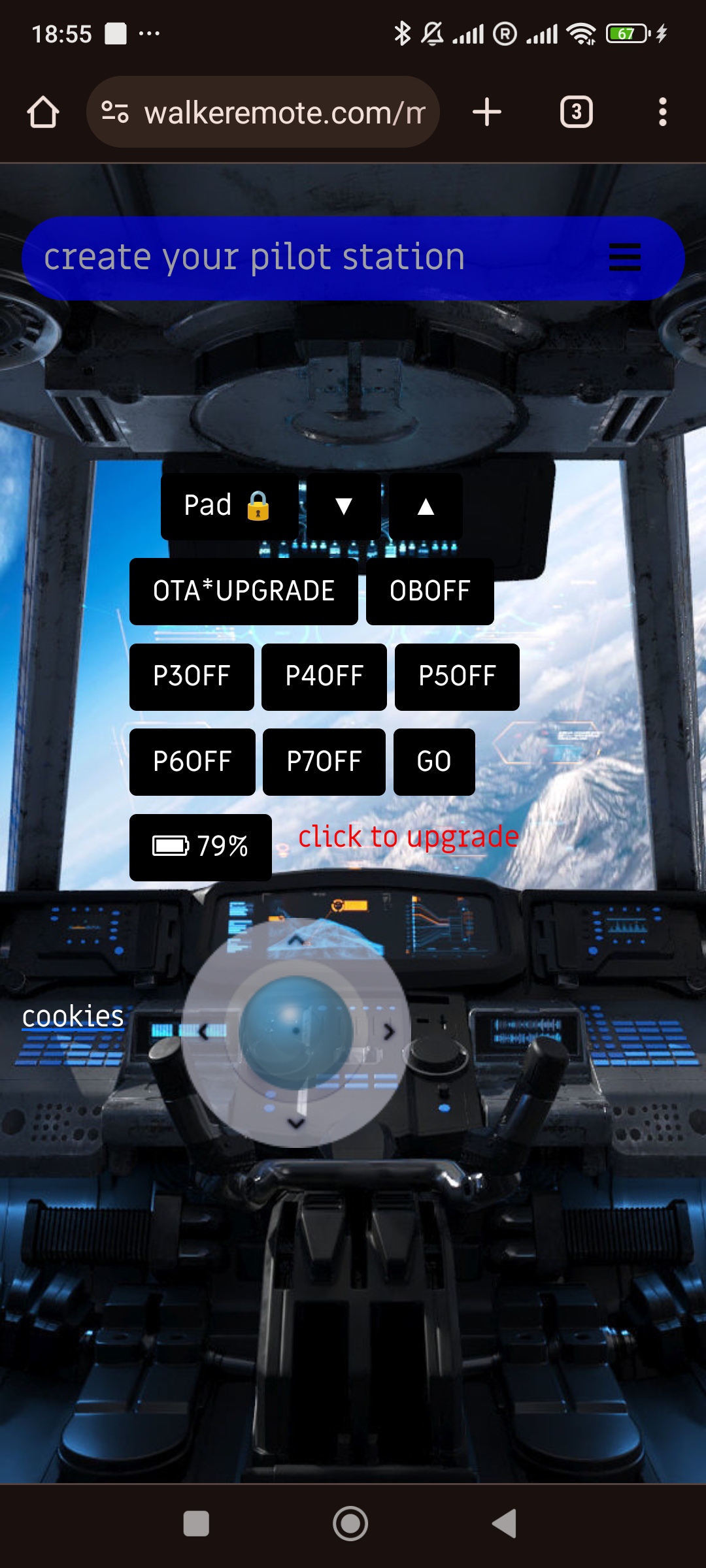
By clicking the OTA UPGRADE button, the button will flash for a few seconds, and the Walkeremoteboard will have the multicolor LED turned off and the blue LED of the microcontroller turned on.
Once the OTA update operation is completed, the button on the command page will stop flashing, displaying a green color with the "successfull" message.
The blue LED on the board will turn off, while the multicolor LED indicating the connection to the server will be lit.
For first wifi setting connection
CLICK HERE for Youtube tutorial
Published by Michele Tavolacci on
Last Upgrade
Added the ability to monitor the battery status powering the walkeremoteboard through the percentage displayed on the command page.
An email will be sent from the board notifying the user that the battery has reached a minimum threshold and needs to go back to the docking station to recharge.
WALKEREMOTEBOARD SIMPLE TO USE FOR IOT EXPERIMENTAL PROJECTS
dev/board esp8266 onboard programmed for use it from walkeremote portal
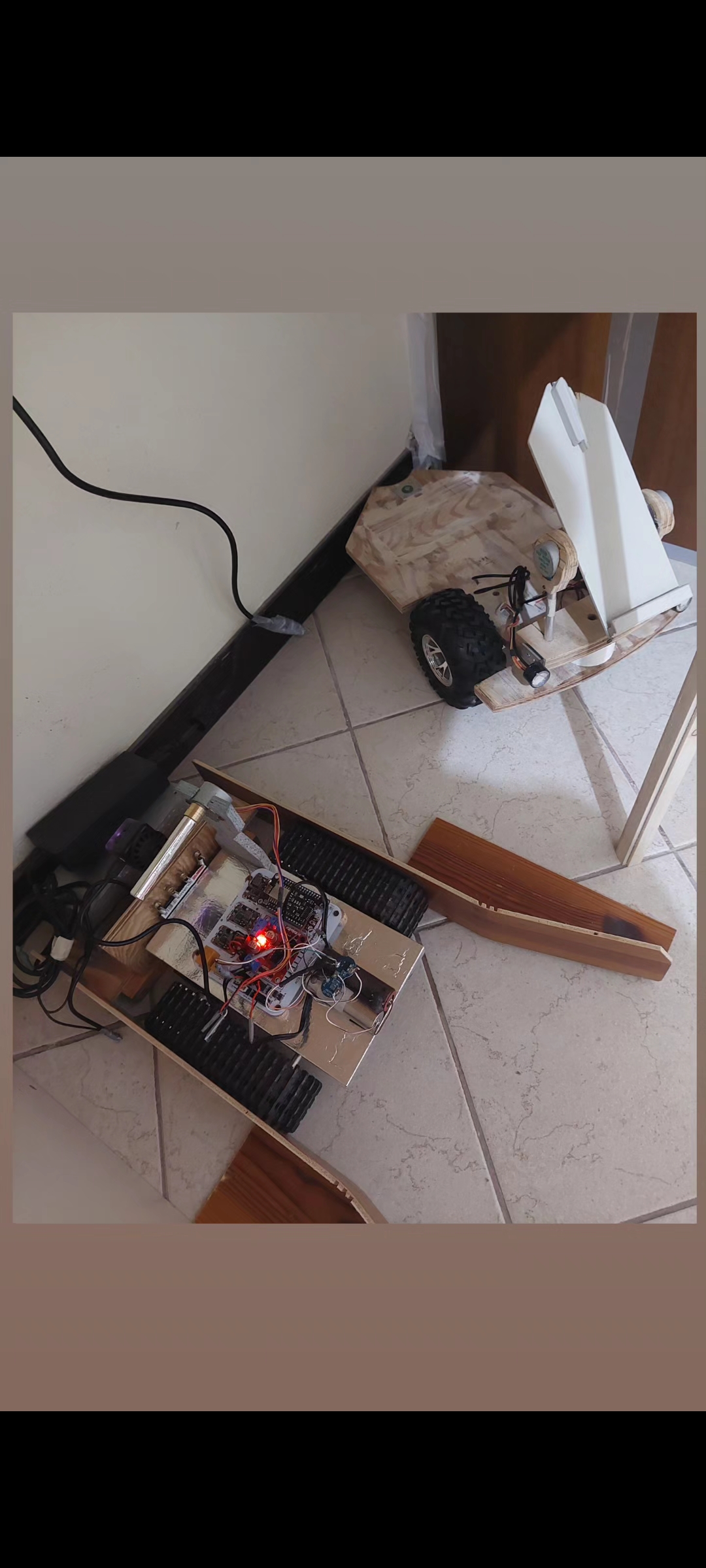
CREATE YOURSELF A TELEPRESENCE SYSTEM HOMEMADE WITH A RASPBERRY AND ARDUINO
Welcome to walkeremote portal. Sign Up to create your pilot station for telepresence system
with use of Raspberry,
actionoiseboards,
old notebook or mobile phone for recycle it.
For Actionoiseboard Hardware and general Tutorials:
HERE
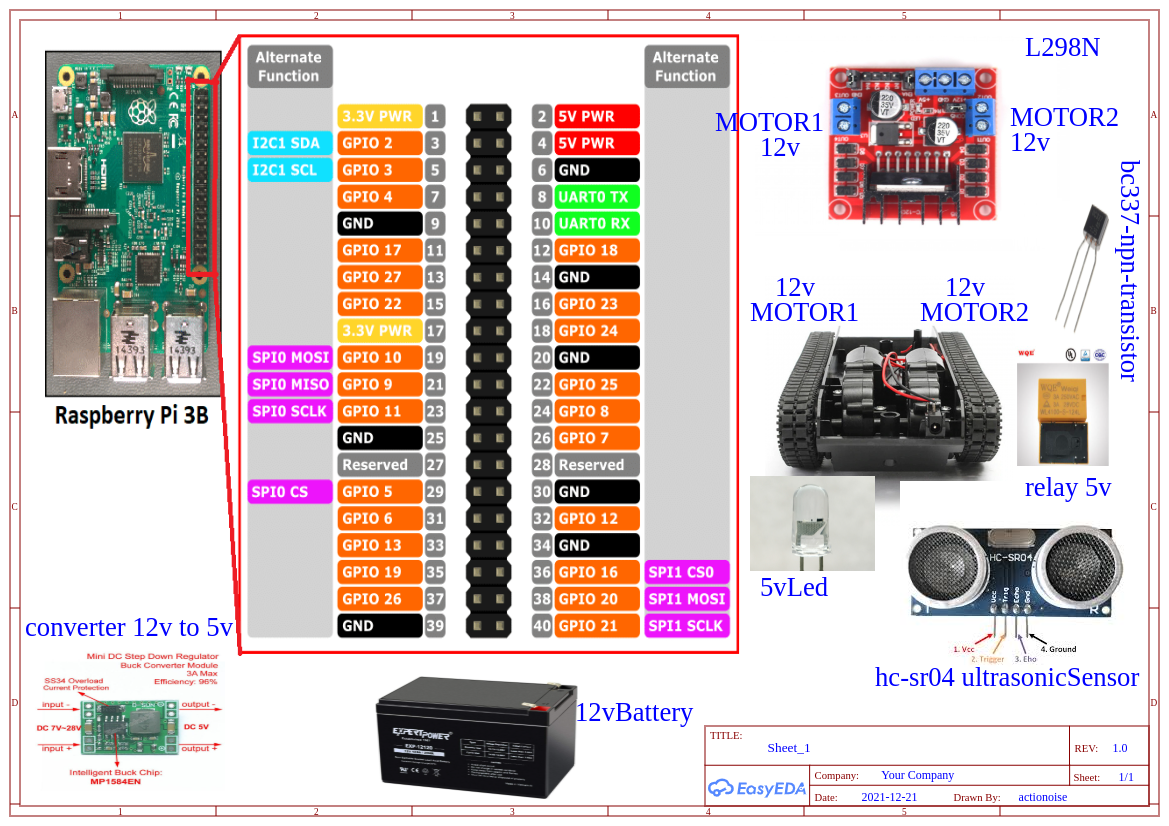
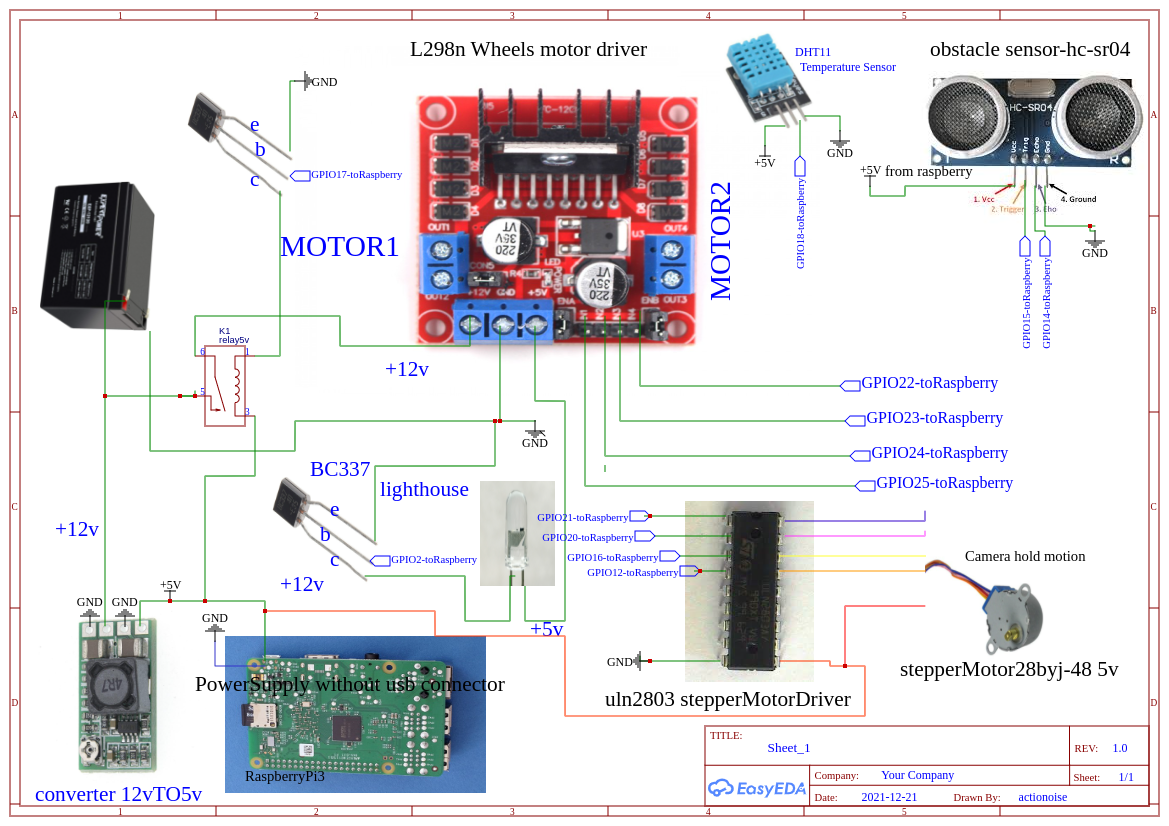
Below last script updated and schematics.
Use of pilot station with notebook keyboard:
arrow keys for direction, k=nord, l=sud
p=Gohead, x=stop.
Reboot from pilot station:
write the number 888 in first arrow form and click red button send, immediately need to change the parameter for avoid the continuous reboot of Dev Board.
SwitchOn lighthouse in GPIO2:
write lon in first arrow form and click send red button.
SwitchOff lighthouse in GPIO2:
write lof in first arrow form and click send red button.
switch on Relay1 from ActionoiseRemoteModule:
write h1 in first arrow form and click send red button.
switch on Relay2 from ActionoiseRemoteModule:
write h2 in first arrow form and click send red button.
switch on Relay3 from ActionoiseRemoteModule:
write h3 in first arrow form and click send red button.
switch on Relay4 from ActionoiseRemoteModule:
write h4 in first arrow form and click send red button.
After registration an email with credentials will be received, copy and paste the credentials to blank form in ADD DB menu button and inside the db variable of python script below.
Example of python code to read database's values
#copy and paste this code in a file py with name Neww.py

import stop
import pymysql.cursors
import RPi.GPIO as GPIO
import time
import subprocess
from threading import Timer
from RpiMotorLib import RpiMotorLib
from smbus import SMBus
addr = 0x8
bus = SMBus(1)

GPIO.setmode(GPIO.BCM)
nord=[21,20,16,12]
sud=[12,16,20,21]
obstacle=0
mymotor=RpiMotorLib.BYJMotor('MyMotorOne','28BYJ')
GPIO.setup(21,GPIO.OUT)
GPIO.setup(20,GPIO.OUT)
GPIO.setup(16,GPIO.OUT)
GPIO.setup(12,GPIO.OUT)
GPIO.setup(2,GPIO.OUT)
GPIO.setup(17,GPIO.OUT)
GPIO.setup(22,GPIO.OUT)
GPIO.setup(23,GPIO.OUT)
GPIO.setup(24,GPIO.OUT)
GPIO.setup(5,GPIO.OUT)
GPIO.output(17,GPIO.HIGH)

db=pymysql.connect(host="",port=3306,user="",password="",db="",charset="utf8mb4")
cursor=db.cursor()
sql="SELECT comandi FROM pilotino"
cur=cursor.execute(sql)
result=cursor.fetchone()

GoHeadTime="SELECT gohead from MotionTime"
time1=cursor.execute(GoHeadTime)
result1=cursor.fetchone()

GoBottomTime="SELECT gobottom from MotionTime"
time2=cursor.execute(GoBottomTime)
result2=cursor.fetchone()

GoRight="SELECT goright from MotionTime"
time3=cursor.execute(GoRight)
result3=cursor.fetchone()

GoLeft="SELECT goleft from MotionTime"
time4=cursor.execute(GoLeft)
result4=cursor.fetchone()

Gorallent="SELECT goralle from MotionTime"
time5=cursor.execute(Gorallent)
result5=cursor.fetchone()

for a in result1:
    print(a+" gohead-time-variable")

for e in result5:
    print(e+" gorallent-time-variable")

for b in result2:
    print(b+" bottom-time-variable")

for d in result3:
    print(d+" bottom-time-variable")

for c in result4:
    print(c+" right-time-variable")

def check():
    if(cur > 0):
        for x in result:
            if(x=="h"):
                print("right")
                GPIO.output(22,GPIO.LOW)
                GPIO.output(23,GPIO.HIGH)
                GPIO.output(24,GPIO.HIGH)
                GPIO.output(5,GPIO.LOW)
                time.sleep(float(d))
                GPIO.output(22,GPIO.LOW)
                GPIO.output(23,GPIO.LOW)
                GPIO.output(24,GPIO.LOW)
                GPIO.output(5,GPIO.LOW)
                via()

            if(x=='nord'):
                print('nord')
                mymotor.motor_run(sud, .1/50,30,False,False,'half', .100)
                via()

            if(x=='sud'):
                print('sud')
                mymotor.motor_run(nord, .1/50,30,False,False,'half', .100)
                via()

            if(x=="g"):
                print("left")
                GPIO.output(22,GPIO.HIGH)
                GPIO.output(23,GPIO.LOW)
                GPIO.output(24,GPIO.LOW)
                GPIO.output(5,GPIO.HIGH)
                time.sleep(float(c))
                GPIO.output(22,GPIO.LOW)
                GPIO.output(23,GPIO.LOW)
                GPIO.output(24,GPIO.LOW)
                GPIO.output(5,GPIO.LOW)
                via()

            if(x=="b"):
                print("bottom")
                GPIO.output(22,GPIO.HIGH)
                GPIO.output(23,GPIO.LOW)
                GPIO.output(24,GPIO.HIGH)
                GPIO.output(5,GPIO.LOW)
                time.sleep(float(b))
                GPIO.output(22,GPIO.LOW)
                GPIO.output(23,GPIO.LOW)
                GPIO.output(24,GPIO.LOW)
                GPIO.output(5,GPIO.LOW)
                via()

            if(x=="ra"):
                print("GoRallent")
                GPIO.output(22,GPIO.LOW)
                GPIO.output(23,GPIO.HIGH)
                GPIO.output(24,GPIO.LOW)
                GPIO.output(5,GPIO.HIGH)
                time.sleep(float(e))
                GPIO.output(22,GPIO.LOW)
                GPIO.output(23,GPIO.LOW)
                GPIO.output(24,GPIO.LOW)
                GPIO.output(5,GPIO.LOW)
                via()

            if(x=="y"):
                print("go no obstacle")
                GPIO.output(22,GPIO.LOW)
                GPIO.output(23,GPIO.HIGH)
                GPIO.output(24,GPIO.LOW)
                GPIO.output(5,GPIO.HIGH)
                time.sleep(float(a))
                GPIO.output(22,GPIO.LOW)
                GPIO.output(23,GPIO.LOW)
                GPIO.output(24,GPIO.LOW)
                GPIO.output(5,GPIO.LOW)
                via()

    if(cur==0):
        print("no command inserted")
        db.close()
        quit()

    via()

def via():
    canc="delete from pilotino"
    cursor.execute(canc)
    db.commit()
    db.close()
    quit()

if(a=='888'):
    subprocess.Popen(['sudo','reboot','-h','now'])

if(a == 'lon'):
    GPIO.output(2,GPIO.HIGH)

if (a=='lof'):
    GPIO.output(2,GPIO.LOW)

if (a == "h1"):
    bus.write_byte(addr, 0x1)
    dele="delete from MotionTime"
    cursor.execute(dele)
    db.commit()
    delay(2)
    quit()

if (a == "h2"):
    bus.write_byte(addr, 0x2)
    dele="delete from MotionTime"
    cursor.execute(dele)
    db.commit()
    delay(2)
    quit()

if (a == "h3"):
    bus.write_byte(addr, 0x3)
    dele="delete from MotionTime"
    cursor.execute(dele)
    db.commit()
    delay(2)
    quit()

if (a == "h4"):
    bus.write_byte(addr, 0x4)
    dele="delete from MotionTime"
    cursor.execute(dele)
    db.commit()
    delay(2)
    quit()

check()
db.close()
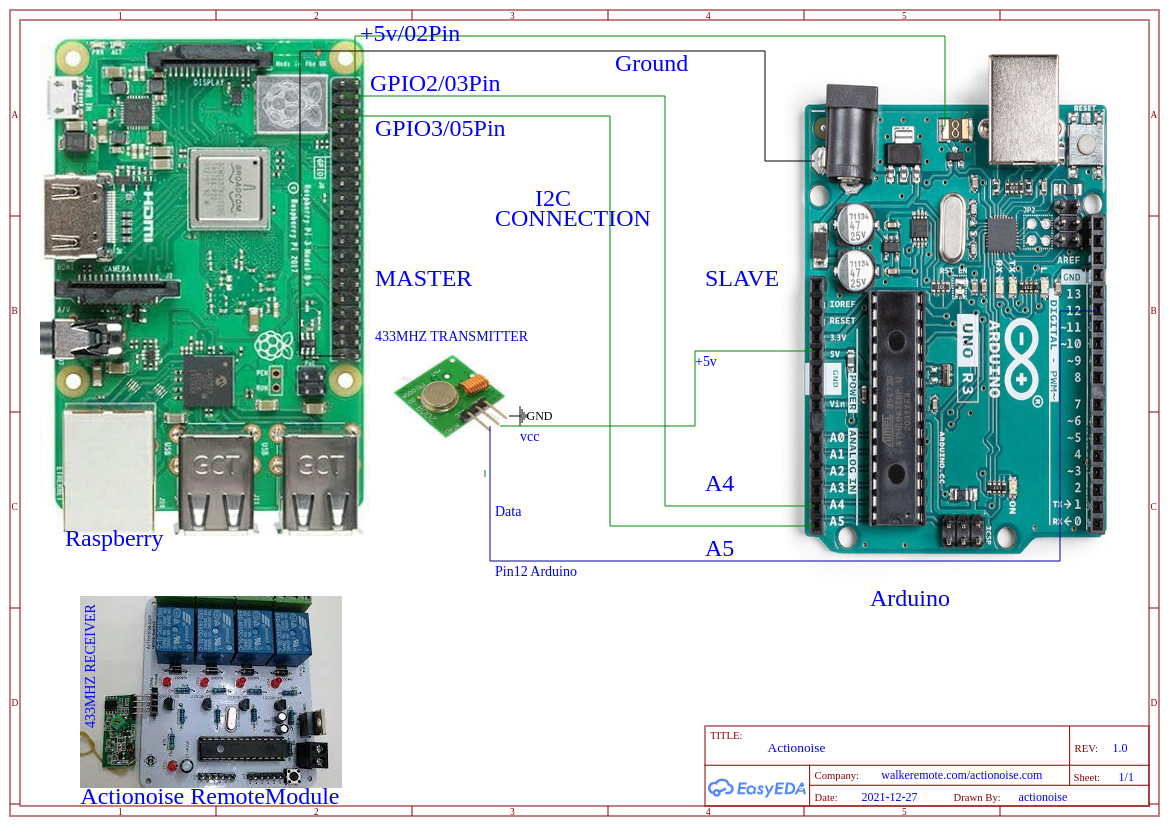
ArduinoCode for i2c connection.
//arduino code for use of ActionoiseRemote Module/433mhz
//arduino connected to raspberry with i2c module

#include <Wire.h>
#include <VirtualWire.h>
int a = 0;
int b= 0;
int t= 0;
int d=0;
int f=0;

void setup() {
  Wire.begin(0x8);
  Wire.onReceive(receiveEvent);
}

void receiveEvent(int howMany) {
  while (Wire.available()) {
    char c = Wire.read();
    if(c == 0x1){
      a = 1;
    }
    if(c == 0x2){
      b = 1;
    }
    if(c == 0x3){
      t = 1;
    }
    if(c == 0x4){
      d = 1;
    }
    if(c==0x6){
      f=1;
    }
  }
}

void loop() {
  if (a == 1){
    vw_set_ptt_inverted(true);
    vw_setup(4000);
    const char *msg = "A";
    vw_send((uint8_t *)msg, strlen(msg));
    vw_wait_tx();
    delay(500);
    a=0;
  }

  if (b == 1){
    vw_set_ptt_inverted(true);
    vw_setup(4000);
    const char *msg = "B";
    vw_send((uint8_t *)msg, strlen(msg));
    vw_wait_tx();
    delay(500);
    b=0;
  }

  if (t == 1){
    vw_set_ptt_inverted(true);
    vw_setup(4000);
    const char *msg = "C";
    vw_send((uint8_t *)msg, strlen(msg));
    vw_wait_tx();
    delay(500);
    t=0;
  }

  if (d == 1){
    vw_set_ptt_inverted(true);
    vw_setup(4000);
    const char *msg = "D";
    vw_send((uint8_t *)msg, strlen(msg));
    vw_wait_tx();
    delay(500);
    d=0;
  }
}
PythonCode for HC-sr04 ultrasonic sensor
#obstacle sensor detect
#copy and paste this code in a file py with name stop.py
import subprocess
import pymysql.cursors
import Neww
import RPi.GPIO as GPIO
from Bluetin_Echo import Echo
GPIO.setwarnings(False)
TRIGGER_PIN = 15
ECHO_PIN = 14
speed_of_sound = 250
echo = Echo(TRIGGER_PIN, ECHO_PIN, speed_of_sound)
samples = 10
resu = echo.read('cm', samples)
obstacle=0
GPIO.setmode(GPIO.BCM)
GPIO.setwarnings(False)
db=pymysql.connect(host="",port=3306,user="",password="",db="",charset="utf8mb4")
cursor=db.cursor()
sql="SELECT comandi FROM pilotino"
cur=cursor.execute(sql)
result=cursor.fetchone()

GPIO.setup(22,GPIO.OUT)
GPIO.setup(23,GPIO.OUT)
GPIO.setup(24,GPIO.OUT)
GPIO.setup(5,GPIO.OUT)

if (resu < 40):
    print('obstacle detected')
    GPIO.output(22,GPIO.LOW)
    GPIO.output(23,GPIO.LOW)
    GPIO.output(24,GPIO.LOW)
    GPIO.output(5,GPIO.LOW)
    canc="delete from pilotino"
    cursor.execute(canc)
    db.commit()
    subprocess.call(['sh','./close.sh'])

print ('no obstacle detected')
PythonCode for DHT11 Temperature Sensor.
#Humidity/Temeperature sensor DHT11 +
#Raspberry CPU Reader +
#DataTime
#copy and paste in a file with temp.py name
#Code in Action from remote place in link below:
#https://www.actionoise.com/tempr.php
from gpiozero import CPUTemperature
from datetime import datetime
from threading import Timer
import pymysql.cursors
import Adafruit_DHT
cpu=CPUTemperature()
internal=(cpu.temperature)
sensor=Adafruit_DHT.DHT11
pin=18
humidity,temperature = Adafruit_DHT.read_retry(sensor,pin)

db=pymysql.connect(host="",port=3306,user="",password="",db="",charset="utf8mb4")
cursor=db.cursor()
data1=datetime.now()

def tira():
    canc="delete from sensor"
    cursor.execute(canc)
    db.commit()
    quit()

def rimbalzo():
    humidity,temperature = Adafruit_DHT.read_retry(sensor,pin)
    data1=datetime.now()
    sql= "insert into sensor (temp,hum,date,cpu) values (%s,%s,%s,%s)"
    cursor.execute(sql,(temperature,humidity,data1,internal))
    db.commit()
    Timer(10.0, tira).start()

rimbalzo()
copy and paste this code below and rename close.sh
#!/bin/bash
killall python3
below 3 last sh file for launch the py script in autostart copy paste and rename in 3 sh file Below the sh for launch the Neww.py script. Rename it in launch.sh
#!/bin/bash
while true;
do
python3 Neww.py;done
below the sh file for launch the stop.py script.rename it in stoppa.sh
#!/bin/bash
while true;
do
python3 stop.py;done
below the sh file for launch the temp.py script.rename it in temp.sh
#!/bin/bash
while true;
do
python3 temp.py;done
Now there are 2 file python Neew.py - stop.py
and 3 sh file that whe can rename: close.sh - launch.sh - stoppa.sh
insert all file inside the folder pi of your raspberry and digit in terminal for every file: sudo chmod 777 filename for admin permission.
At the end go to autostart file, from terminal digit:
cd ../../etc/xdg/lxsession/LXDE-pi
inside LXDE-pi digit: sudo nano autostart
add to file this two string:
@lxterminal -e /home/pi/launch.sh
@lxterminal -e /home/pi/stoppa.sh
press ctrl + x and y at the end and finish, reboot the raspberry and you can see in your screen the 2 file py launch it in autostart.
Follow the Actionoise Twitch channel and join to live for more tutorials and try yourself from remote the raspberry robocars.
Database's tables and rows creation
Create inside the db a table with name MotionTime and inside this one create 5 columns with same order and name like below:
gobottom gohead goleft goralle goright,
select VARCHAR in variable form and 128 in length form, same for every column.
create another table inside the same db with name pilotino and inside pilotino create a column with name:
comandi and same VARCHAR variable and 128 in length form.
for resolve error about max_connections, just need modify the mysql global variable max_connections.
digit in mysql console: SHOW VARIABLES LIKE "MAX_CONNECTIONS";
and in case of a value low increase with the command:
SET GLOBAL MAX CONNECTIONS=10000; Press CTRL+Enter from phpmyadmin
SET GLOBAL WAIT_TIMEOUT=1; Press CTRL+Enter from phpmyadmin
For temperature and humidity sensor inside the same database, create a table with name sensor, and inside create 4 columns with the same name and order:
temp hum date cpu
with VARCHAR variable and 128 of length.
Send Commands with MQTT protocol.
Another solution to send commands from remote is the MQTT protocol,
the same to use for Internet of things.
Below the python script for the raspberry car and for the remote device used for send message-commands.
#install before the paho.mqtt library
#and start this script inside a raspberry
#assembled with same schematic up this page
from RpiMotorLib import RpiMotorLib
import paho.mqtt.client as mqtt
import RPi.GPIO as GPIO
GPIO.setmode(GPIO.BCM)
import time
GPIO.setmode(GPIO.BCM)

nord=[21,20,16,12]
sud=[12,16,20,21]
mymotor=RpiMotorLib.BYJMotor('MyMotorOne','28BYJ')
GPIO.setup(21,GPIO.OUT)
GPIO.setup(20,GPIO.OUT)
GPIO.setup(16,GPIO.OUT)
GPIO.setup(12,GPIO.OUT)
GPIO.setup(17,GPIO.OUT)
GPIO.setup(22,GPIO.OUT)
GPIO.setup(23,GPIO.OUT)
GPIO.setup(24,GPIO.OUT)
GPIO.setup(5,GPIO.OUT)
GPIO.output(17,GPIO.HIGH)

def on_connect(client, userdata, flags, rc):
    print(f"connected with result code {rc}")
    client.subscribe(".....")

mymessage =''

def on_message(client,userdata,msg):
    global mymessage
    mymessage = str (f"{msg.payload}")
    print (mymessage)
    if(mymessage== "b'nord'"):
        print('comando ricevuto')
        mymotor.motor_run(sud, .1/50,30,False,False,'half', .100)

    if(mymessage=="b'sud'"):
        print('comando ricevuto')
        mymotor.motor_run(nord, .1/50,30,False,False,'half', .100)

    if(mymessage=="b'right'"):
        print("right")
        GPIO.output(22,GPIO.LOW)
        GPIO.output(23,GPIO.HIGH)
        GPIO.output(24,GPIO.HIGH)
        GPIO.output(5,GPIO.LOW)
        time.sleep(float(0.4))
        GPIO.output(22,GPIO.LOW)
        GPIO.output(23,GPIO.LOW)
        GPIO.output(24,GPIO.LOW)
        GPIO.output(5,GPIO.LOW)

    if(mymessage=="b'stop'"):
        print("stop")
        GPIO.output(22,GPIO.LOW)
        GPIO.output(23,GPIO.LOW)
        GPIO.output(24,GPIO.LOW)
        GPIO.output(5,GPIO.LOW)

    if(mymessage=="b'left'"):
        print("left")
        GPIO.output(22,GPIO.HIGH)
        GPIO.output(23,GPIO.LOW)
        GPIO.output(24,GPIO.LOW)
        GPIO.output(5,GPIO.HIGH)
        time.sleep(float(0.4))
        GPIO.output(22,GPIO.LOW)
        GPIO.output(23,GPIO.LOW)
        GPIO.output(24,GPIO.LOW)
        GPIO.output(5,GPIO.LOW)

    if(mymessage=="b'bottom'"):
        print("bottom")
        GPIO.output(22,GPIO.HIGH)
        GPIO.output(23,GPIO.LOW)
        GPIO.output(24,GPIO.HIGH)
        GPIO.output(5,GPIO.LOW)
        time.sleep(float(0.4))
        GPIO.output(22,GPIO.LOW)
        GPIO.output(23,GPIO.LOW)
        GPIO.output(24,GPIO.LOW)
        GPIO.output(5,GPIO.LOW)

    if(mymessage=="b'gora'"):
        print("GoRallent")
        GPIO.output(22,GPIO.LOW)
        GPIO.output(23,GPIO.HIGH)
        GPIO.output(24,GPIO.LOW)
        GPIO.output(5,GPIO.HIGH)
        time.sleep(float(0.4))
        GPIO.output(22,GPIO.LOW)
        GPIO.output(23,GPIO.LOW)
        GPIO.output(24,GPIO.LOW)
        GPIO.output(5,GPIO.LOW)

    if(mymessage=="b'go'"):
        print("go no obstacle")
        GPIO.output(22,GPIO.LOW)
        GPIO.output(23,GPIO.HIGH)
        GPIO.output(24,GPIO.LOW)
        GPIO.output(5,GPIO.HIGH)

client = mqtt.Client()
client.on_connect = on_connect
client.on_message = on_message
client.will_set("raspberry/status",b'{"status":"off"}')
client.connect("broker.emqx.io",1883,60)

client.loop_forever()
Below Python script for send message-commands with mqtt protocol from remote device.
#install in your remote device the mqtt library:
#pip3 install paho-mqtt
#create a profile in remote server broker:
#https://mqttx.app/ or dowload the app
#List of remote server broker free in link below:
#https://github.com/mqtt/mqtt.org/wiki/brokers
#commads: arrow key for direction,
#backspace for stop,
#n key for move the camera up,
#s key for move the camera frame down.
#sudo pip3 install keyboard
#create a file with name mqtt.py

import paho.mqtt.client as mqtt
import time
import keyboard

def stoppa():
    mqttc = mqtt.Client()
    mqttc.connect("broker.emqx.io", 1883, 60)
    mqttc.loop_start()
    mqttc.publish(".....", "stop")
    mqttc.loop_stop()

while(1<2):
    while keyboard.is_pressed("s"):
        mqttc = mqtt.Client()
        mqttc.connect("broker.emqx.io", 1883, 60)
        mqttc.loop_start()
        mqttc.publish("........", "sud")
        mqttc.loop_stop()

    while keyboard.is_pressed("n"):
        mqttc = mqtt.Client()
        mqttc.connect("broker.emqx.io", 1883, 60)
        mqttc.loop_start()
        mqttc.publish(".......", "nord")
        mqttc.loop_stop()

    while keyboard.is_pressed("up arrow"):
        mqttc = mqtt.Client()
        mqttc.connect("broker.emqx.io", 1883, 60)
        mqttc.loop_start()
        mqttc.publish("........", "go")
        mqttc.loop_stop()

    while keyboard.is_pressed("down arrow"):
        mqttc = mqtt.Client()
        mqttc.connect("broker.emqx.io", 1883, 60)
        mqttc.loop_start()
        mqttc.publish(".......", "bottom")
        mqttc.loop_stop()

    while keyboard.is_pressed("left arrow"):
        mqttc = mqtt.Client()
        mqttc.connect("broker.emqx.io", 1883, 60)
        mqttc.loop_start()
        mqttc.publish("......", "right")
        mqttc.loop_stop()

    while keyboard.is_pressed("right arrow"):
        mqttc = mqtt.Client()
        mqttc.connect("broker.emqx.io", 1883, 60)
        mqttc.loop_start()
        mqttc.publish(".....", "left")
        mqttc.loop_stop()

    while keyboard.is_pressed("g"):
        mqttc = mqtt.Client()
        mqttc.connect("broker.emqx.io", 1883, 60)
        mqttc.loop_start()
        mqttc.publish("........", "go")
        mqttc.loop_stop()

    while keyboard.is_pressed("space"):
        mqttc = mqtt.Client()
        mqttc.connect("broker.emqx.io", 1883, 60)
        mqttc.loop_start()
        mqttc.publish(".......", "stop")
        mqttc.loop_stop()
Published by Michele Tavolacci on
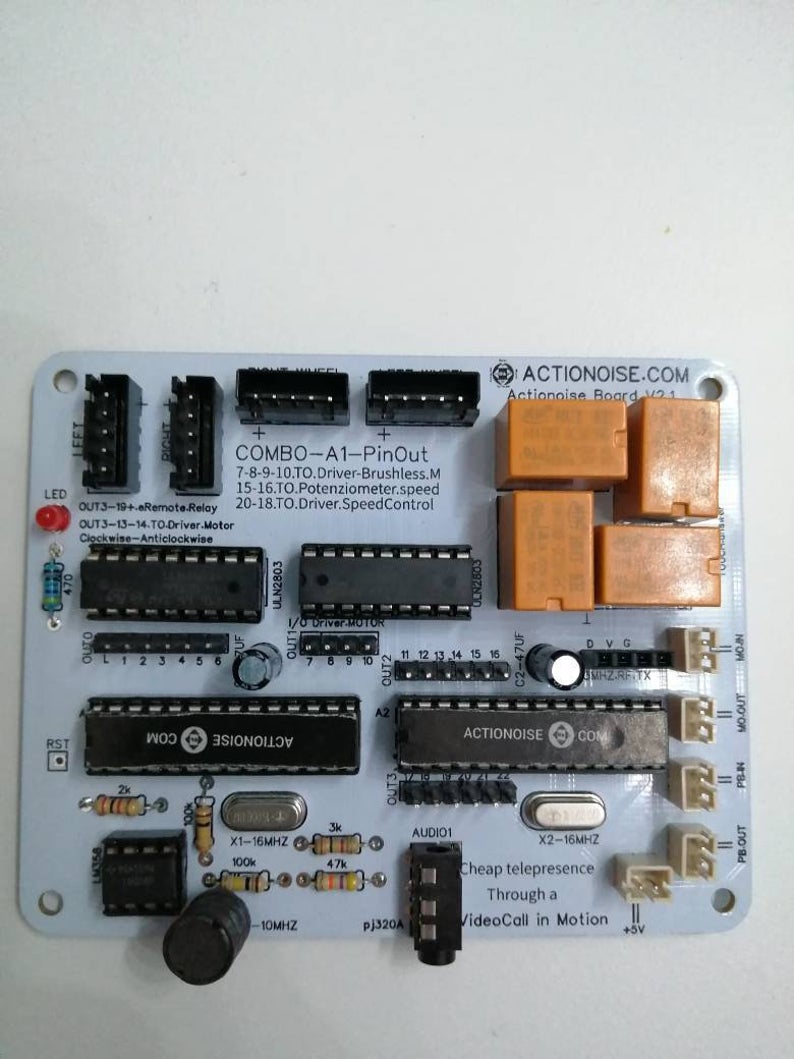
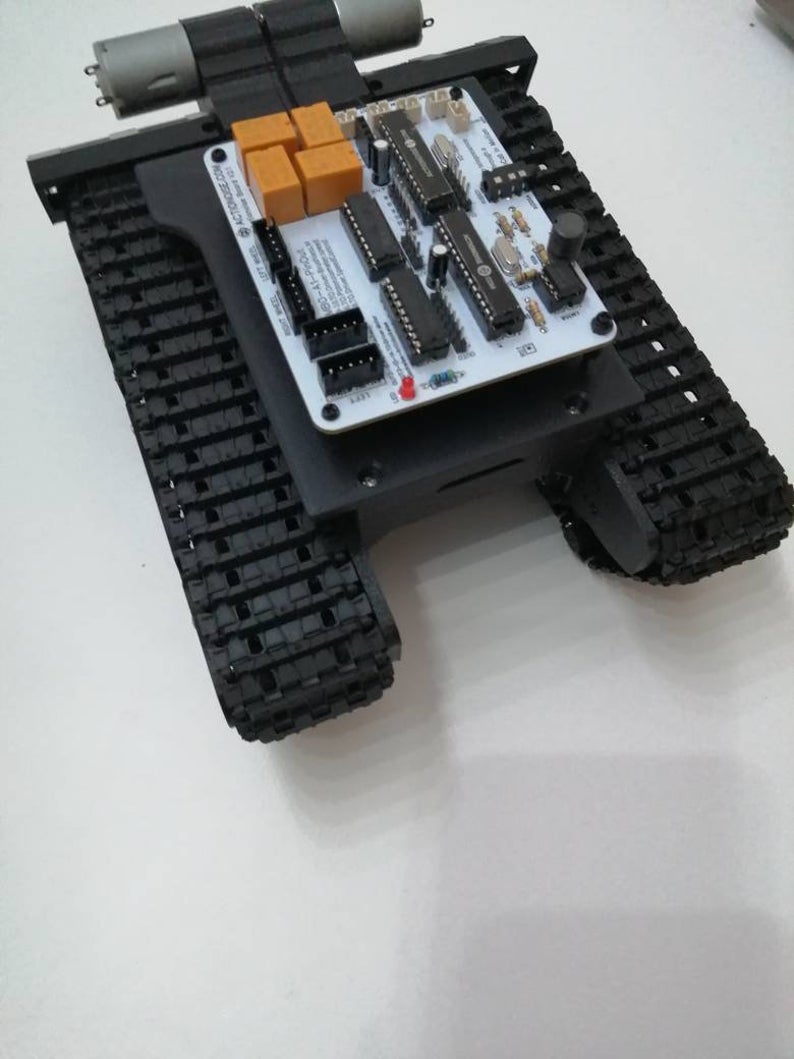
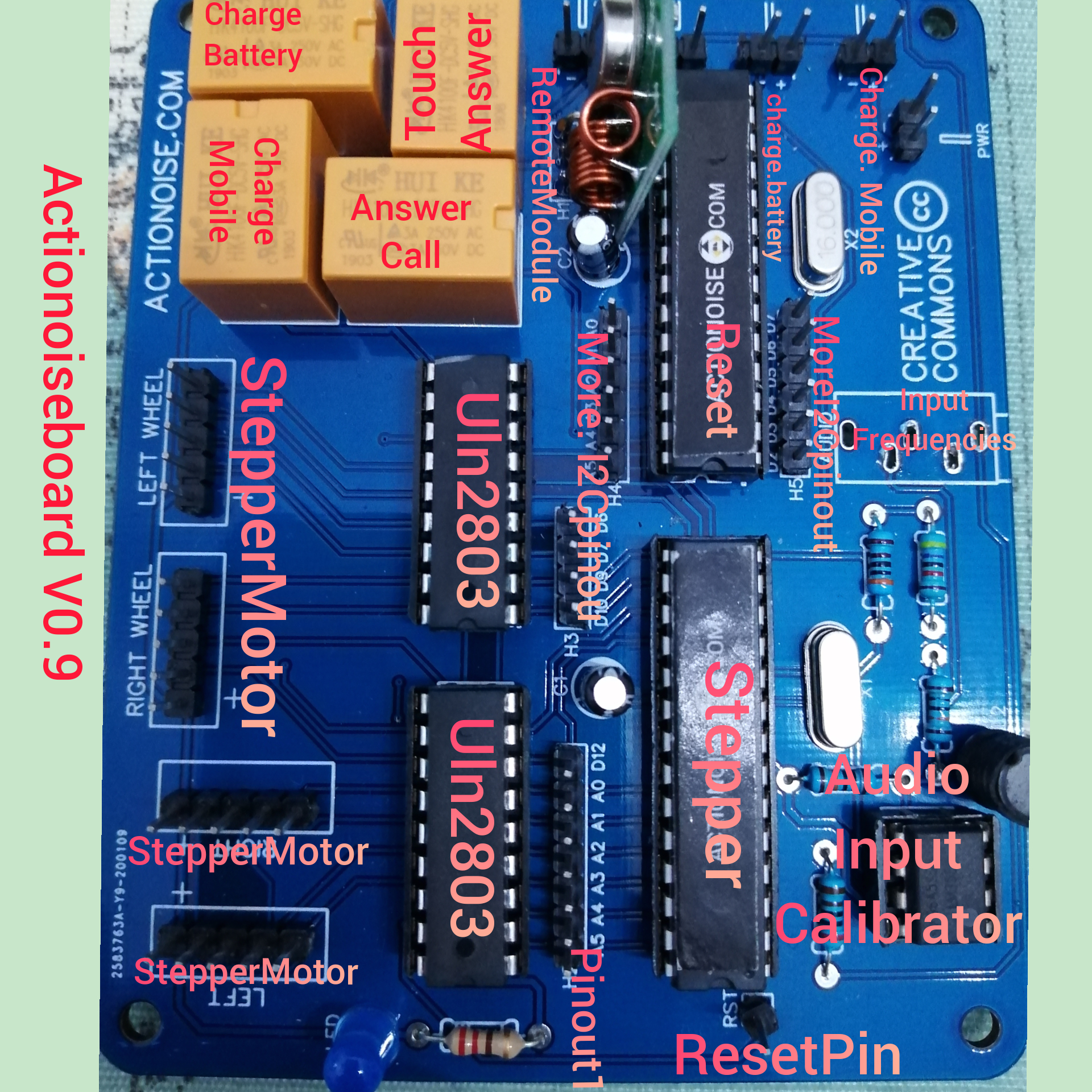
Actionoiseboard Recycling Old Phones into Functional Control Systems
Actionoise was born from a simple idea: reusing old cell phones destined for the trash by turning them into remote control tools.
By exploiting their audio channel, it was possible to transmit sound impulses capable of switching relays or moving motors remotely,
even through a simple video call.
This approach avoided reliance on cloud platforms, keeping the system essential, direct, and rooted in technological reuse.
That experiment represented an alternative way of thinking about automation:
not necessarily expensive or tied to external services, but creative, accessible, and sustainable.
Today Actionoise does not disappear but instead merges into Walkeremote, carrying with it all the experience it has accumulated.
On this site you will find the key content from the old project, alongside new ideas and developments related to automation, telepresence, and remote systems. 📦 ActionoiseFile Collection
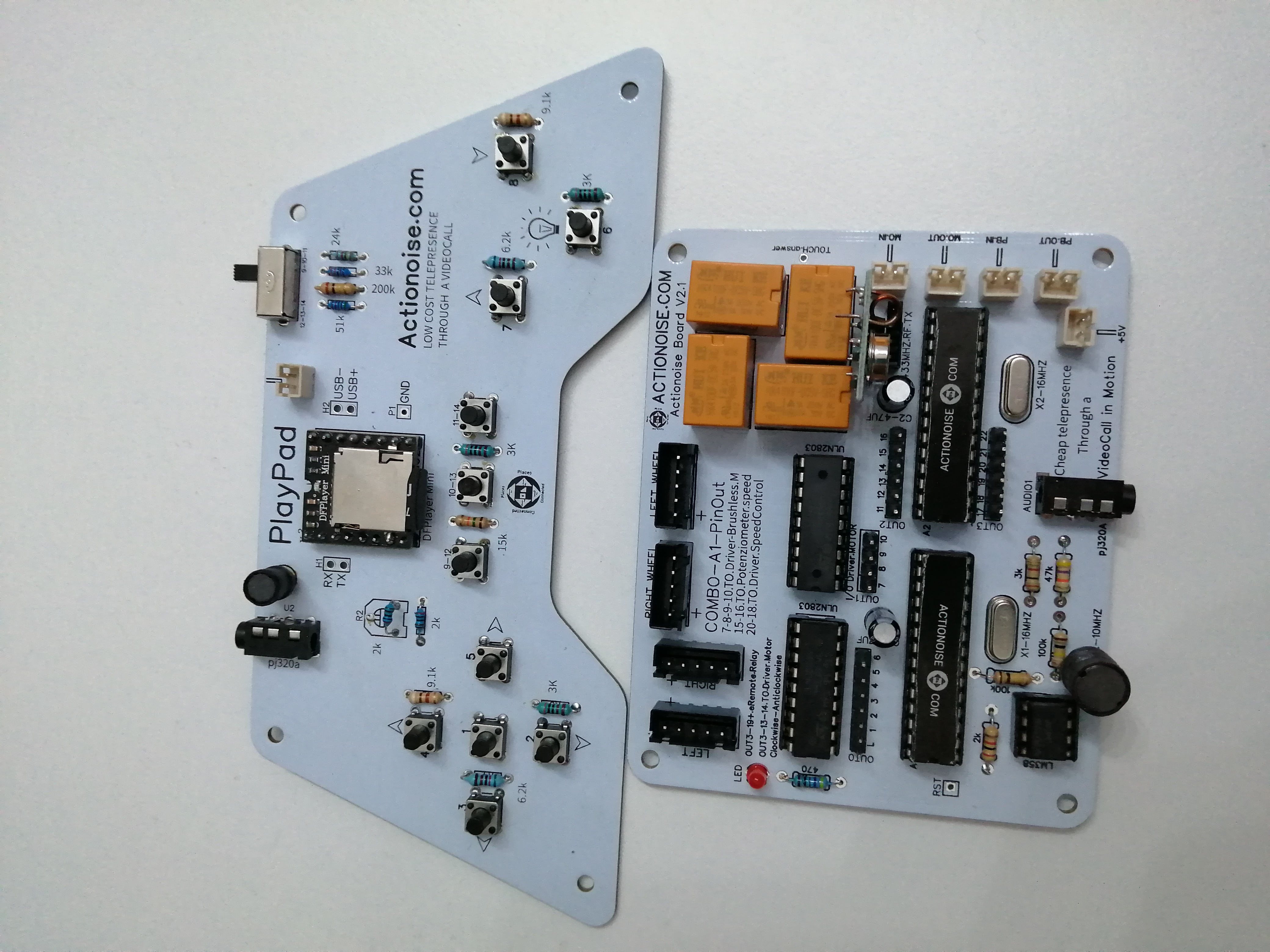
Remaining on the topic of audio waves, I also came up with the idea of creating a joypad called Playpad.
This device works as an MP3 player for audio tracks. Once connected to the calling phone via jack, it allows the user to send the correct audio track through dedicated buttons,
in order to remotely control the Actionoiseboard.
The entire project was showcased at the Maker Faire (in 2019), where I presented archive videos and images of the system by clicking image:
The logo below belongs to the company that supported me in the development of all the electronic boards.
By clicking on it, you can download the various Gerber files of the boards.